Troubleshooting with AI
Using AI to troubleshoot issues can be a powerful and efficient approach to resolving problems across various pieces software. This is especially true in cases where multiple applications and tools are used together since it is unlikely that the product administrator is an expert in all of the tools involved and it becomes difficult for them to determine where an error is coming from.
AI can assist humans in diagnosing issues, but it is important to remember AI limitations where your judgment and domain knowledge are often necessary for complex problem-solving. When given the appropriate context, AI is helpful in providing testing instructions and giving multiple suggestions for areas the problem could be occurring in.
Providing Troubleshooting Context
In order to get recommendations relevant to an issue, the AI needs to know:
- The task
- What has been attempted
- The issue or error
- The application used
- Any other supporting context or details
Example
Sam is altering the navigation bar of a site to include a new "About" button. Their changes are not resolving properly and the site is now coming up with an error. Sam connects to an AI bot and needs to develop a prompt that includes:
- The task: trying to add an "About" button to the navigation bar.
- What has been attempted: have altered the Navbar.js file to look like <insert Navbar.js contents>
- The issue or error: The website is not longer working and returns the error <insert error>
- The application used: Gatsby
- Any other supporting context or details: The Navbar.js file is what builds the navigation bar and the Google Chrome browser is being used.
Sam's resulting prompt ends up being:
"I am trying to add an "About" button to the right of the "Home" button. I am using Gatsby to build the site and the Navbar.js file controls the configuration of the Navigation bar. When the site builds and I try to open the site in Google Chrome, I am getting the error <inserted error>. How do I fix this? My Navbar.js file looks like: <inserted Navbar.js contents>"
The AI now has the appropriate context to suggest what could be causing the issue. It may provide the area in the code that is incorrect, known errors in applications that could be causing the problem and/or a list of items to verify. Sam can then ask additional follow-up questions to narrow down options, such as how to test if one of the suggestions is the cause. Methodically going through the AI bot's suggestions and asking for instructions and verification steps will help Sam fix the issue and complete the task.
Troubleshooting Prompts
Initial Questions
When asking AI to troubleshoot issue for you, the responses from the AI often include several areas and methods to use to identify where the problem lies. This provides an excellent starting point for solving issues.
-
Use Case: I am receiving the following error: XYZ. How do I fix it?
Prompt example: I want you to act as a technical support analyst. I am using Bravura Cloud to bring in Active Directory data from Bravura Security Fabric. My target ID for the Active Directory target is AD_CORPORATE. I am receiving the following error when testing the AD_CORPORATE target credentials: "Failed (Failed: Operation results missing for index [0].)". How do I fix it?
-
Use Case: I am trying to do XYZ, but it is not working. Why?
Prompt example: I want you to act as a technical support analyst. I am using Bravura Cloud to bring in Active Directory data from Bravura Security Fabric. When I try to view Active Directory users and groups in Bravura Cloud, I am not seeing any users or groups. Why?
-
Use Case: From the issue description and error logs I have provided, write me an email that I can send to Bravura Security support so that they can advise how to fix the problem. In the email I want you to include XYZ.
Prompt example From the issue description and error logs I have provided, write me an email that I can send to Bravura Security support so that they can advise how to fix the problem. In the email I want you to include the date and time the issue occured, what the issue is, the changes I have made to try and resolve the problem and the results of those changes. After providing the email to me, tell me which files and screenshots I should attach to the email to give the support agent appropriate context.
Follow-up Questions
Once the AI has delivered a set of suggestions for solving or investigating the issue it is often useful to ask additional follow-up questions. These questions may ask about clarifications, instructions for how to verify a step, where to find particular logs...etc. Take the following sample output from an AI that has been given the prompt:
"I am trying to add an "About" button to the right of the "Home" button. I am using Gatsby to build the site and the Navbar.js file controls the configuration of the Navigation bar. When the site builds and I try to open the site in Google Chrome, it isn't opening. How do I fix this?"
A sample response from a chat bot may be:
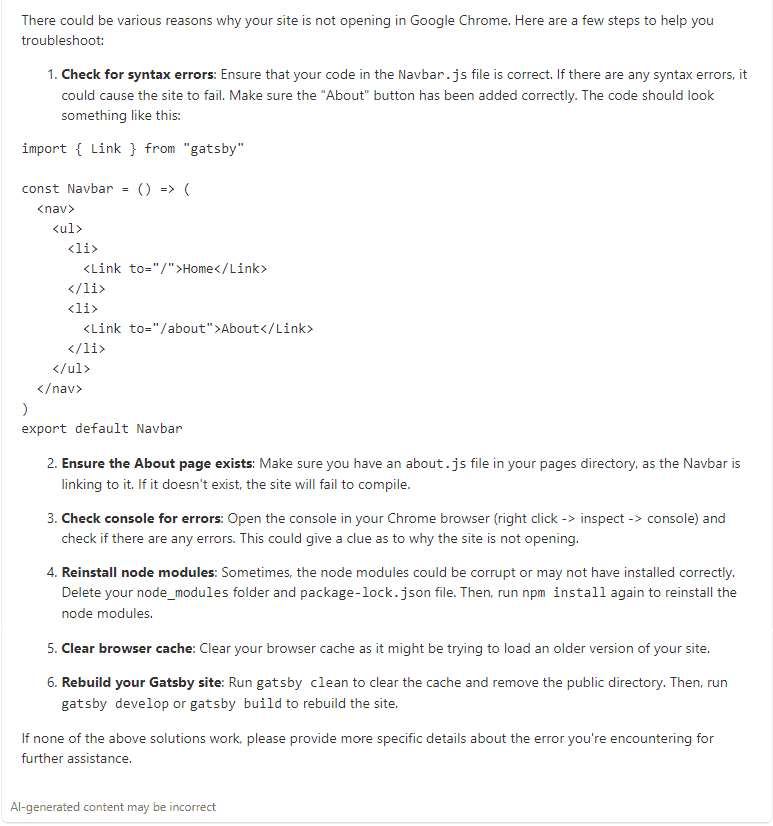
A few follow-up questions Sam might ask would be:
-
Does this look correct? My code looks like this <inserted code>
-
The console is reporting the error <inserted error>. What does that mean?
-
How would I reinstall the node modules that you suggested?
-
What do the node modules do?
-
Clearing the cache worked! What circumstances does the cache often need to be cleared before rebuiding the site?
By asking clarification and other follow-up questions Sam gets closer to understanding and solving the problem. Attempting each of the solutions and providing the AI with the results of the tests helps rule-out some of the potential issues and may provide further ideas to try.