Introduction to bring your own identity provider
Bravura Cloud supports bringing your own identity provider (IdP) through Keycloak. It is highly recommended that you configure an identity provider for users to authenticate to Bravura Cloud.
At deployment, identity providers within Keycloak are disabled. The following are available for configuration:
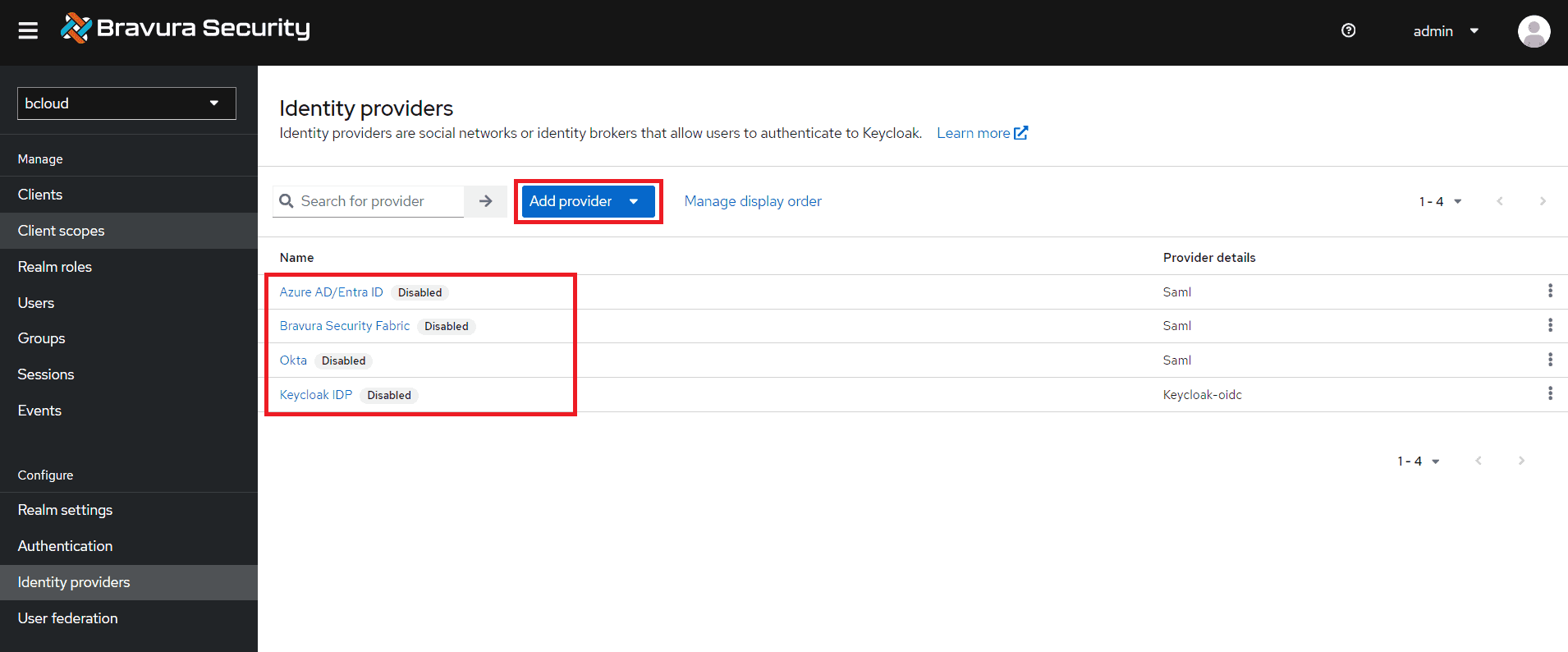
Please note that your configuration may differ, and you will need to consult the official documentation for your identity provider if there are any discrepancies.
Azure AD
Microsoft Azure Portal configuration
-
Sign in to the Microsoft Azure Portal.
-
On the main page, click Enterprise Applications. Alternatively, search for "Enterprise Applications" using the search bar.
-
Click New application.
-
Click Create your own application.
-
Input the name of the app (ie. Bravura Cloud)
-
Click Create.
-
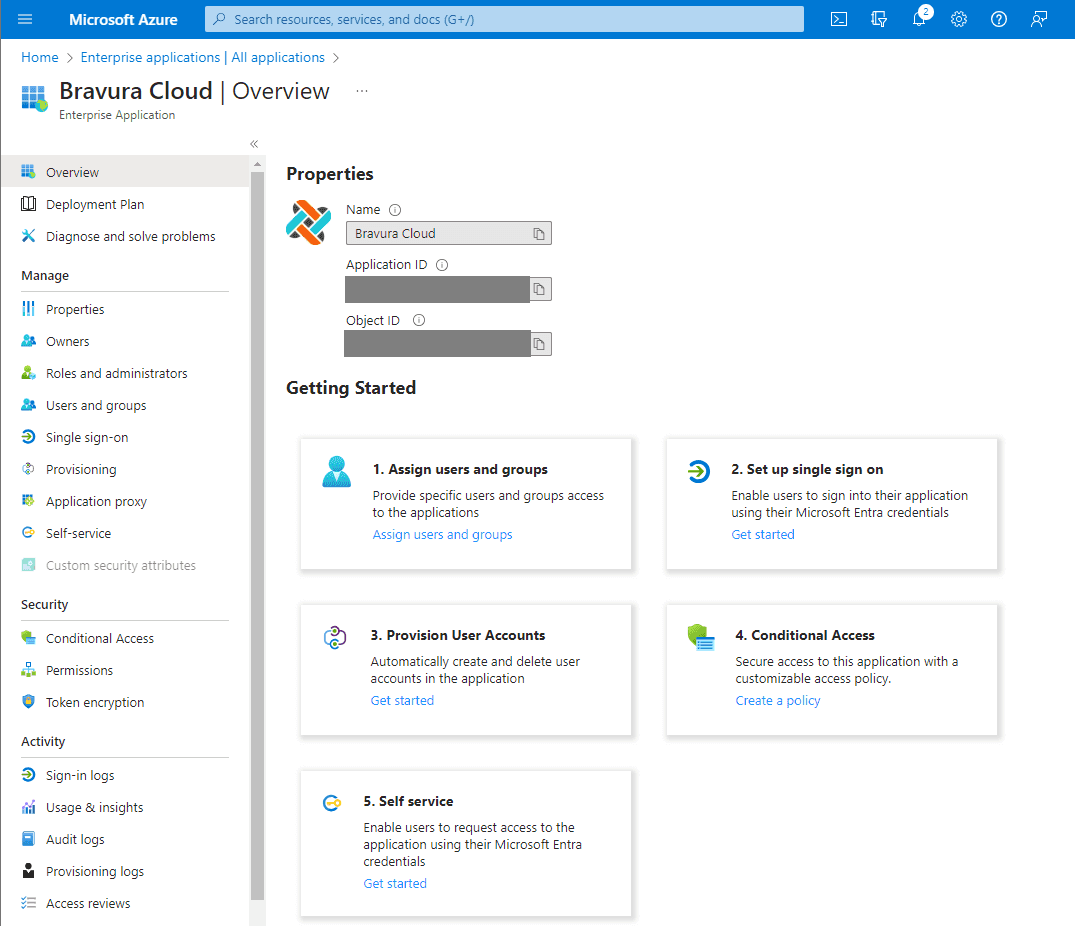
The Overview page for the app should appear.
-
Click Assign users and groups.
-
Assign one or more users and/or groups to the app.
-
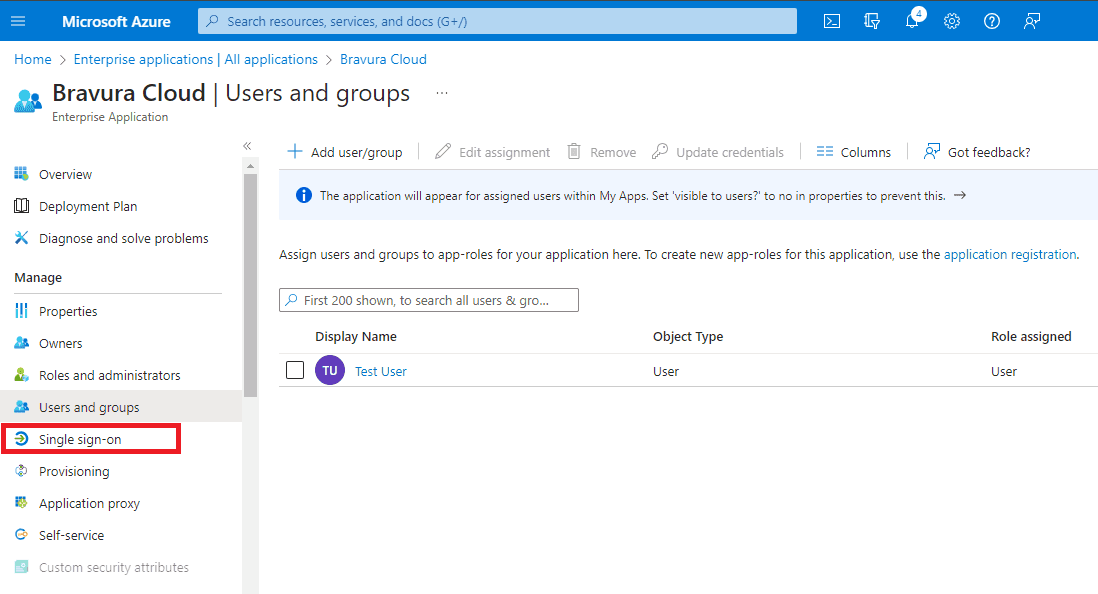
After the assignment, click Single sign-on under Manage.
-
Choose "SAML" as the single sign-on method.
-
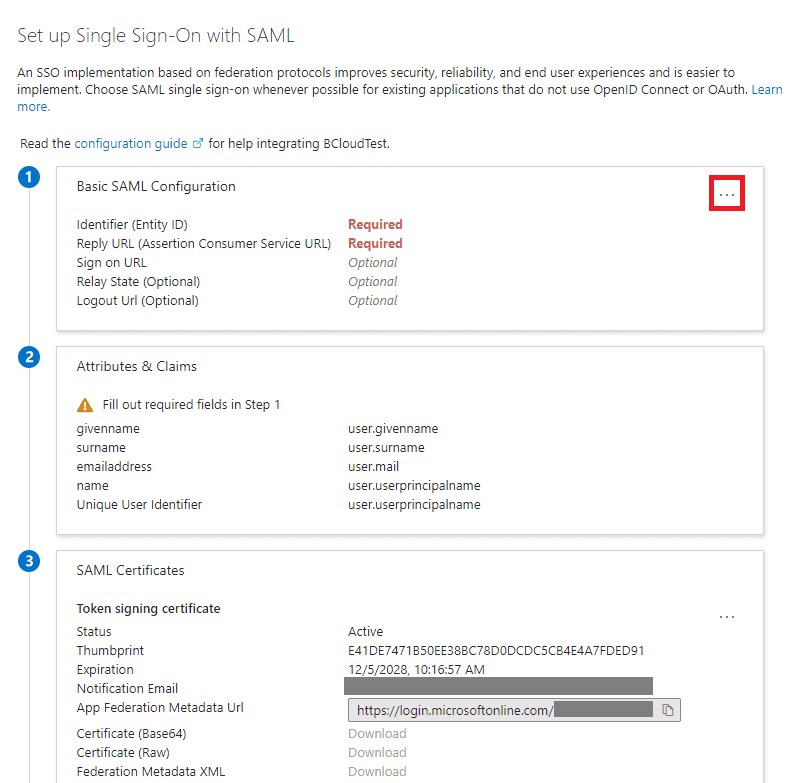
The "Set up Single Sign-on with SAML" page should appear. Click the 3 dots beside Basic SAML Configuration.
-
Click Edit.
-
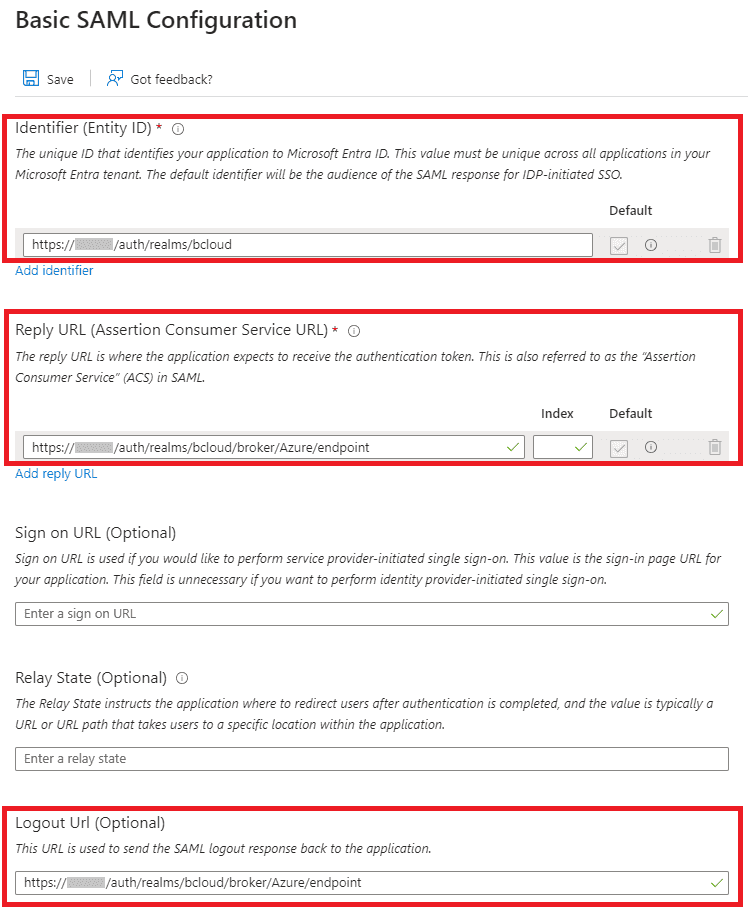
Configure the following:
- Set the Identifier to be
https://<bcloud-host>/auth/realms/bcloud, replacing<bcloud-host>with the actual host name of the Bravura Cloud deployment. - Set the Reply URL to be
https://<bcloud-host>/auth/realms/bcloud/broker/Azure/endpoint, replacing<bcloud-host>with the actual host name of the Bravura Cloud deployment. - Set the Logout Url to be
https://<bcloud-host>/auth/realms/bcloud/broker/Azure/endpoint, replacing<bcloud-host>with the actual host name of the Bravura Cloud deployment.
The configuration should look like the following:
- Set the Identifier to be
-
Click Save.
-
Steps 2 (Attributes & Claims) and 3 (SAML Certificates) of the SAML-based Sign-on configuration are optional, however you can modify these to cater to your environment.
-
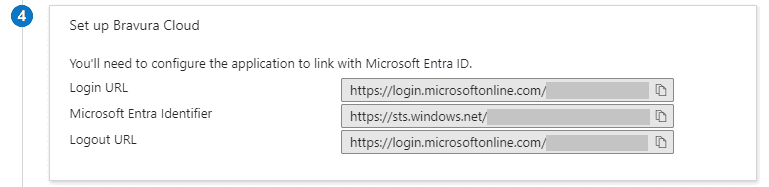
Scroll down to step 4 - Set up Bravura Cloud. Make note of the following info:
- Login URL
- Microsoft Entra Identifier
- Logout URL
Bravura Cloud configuration
-
Access the Azure AD/Entra ID identity provider configuration: https://<bcloud-host>/auth/admin/master/console/#/bcloud/identity-providers/saml/Azure/settings where <bcloud-host> is the host name of your Bravura Cloud deployment.
-
Note the Redirect URI value. This should match the "Reply URL" in the Azure application SAML configuration.
-
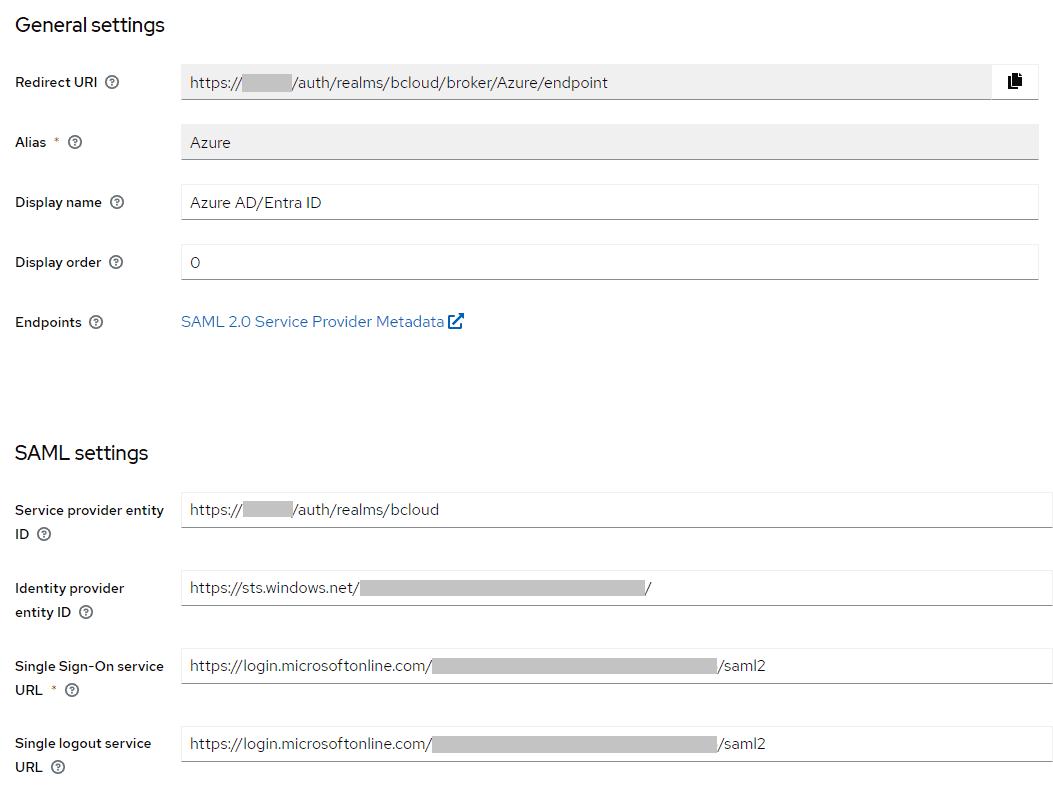
Under SAML settings, configure the following:
- Service provider entity ID: the identifier of the BCloud realm
- Identity provider entity ID: the identifier of the Azure application
- Single Sign-On service URL: the Login URL for the Azure application
- Single logout service URL: the Logout URL for the Azure application
The configuration should look like the following:
-
Scroll down, and set Force authentication to On.
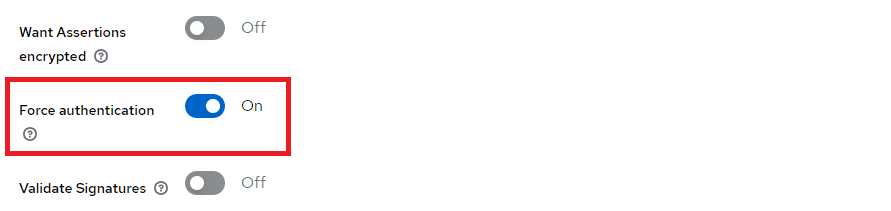
This will ensure that when the user logs out, they will need to re-authenticate when they access Bravura Cloud.
-
Click Save
-
Scroll to the top, and click the button beside Disabled to enable the identity provider. It should then say Enabled.
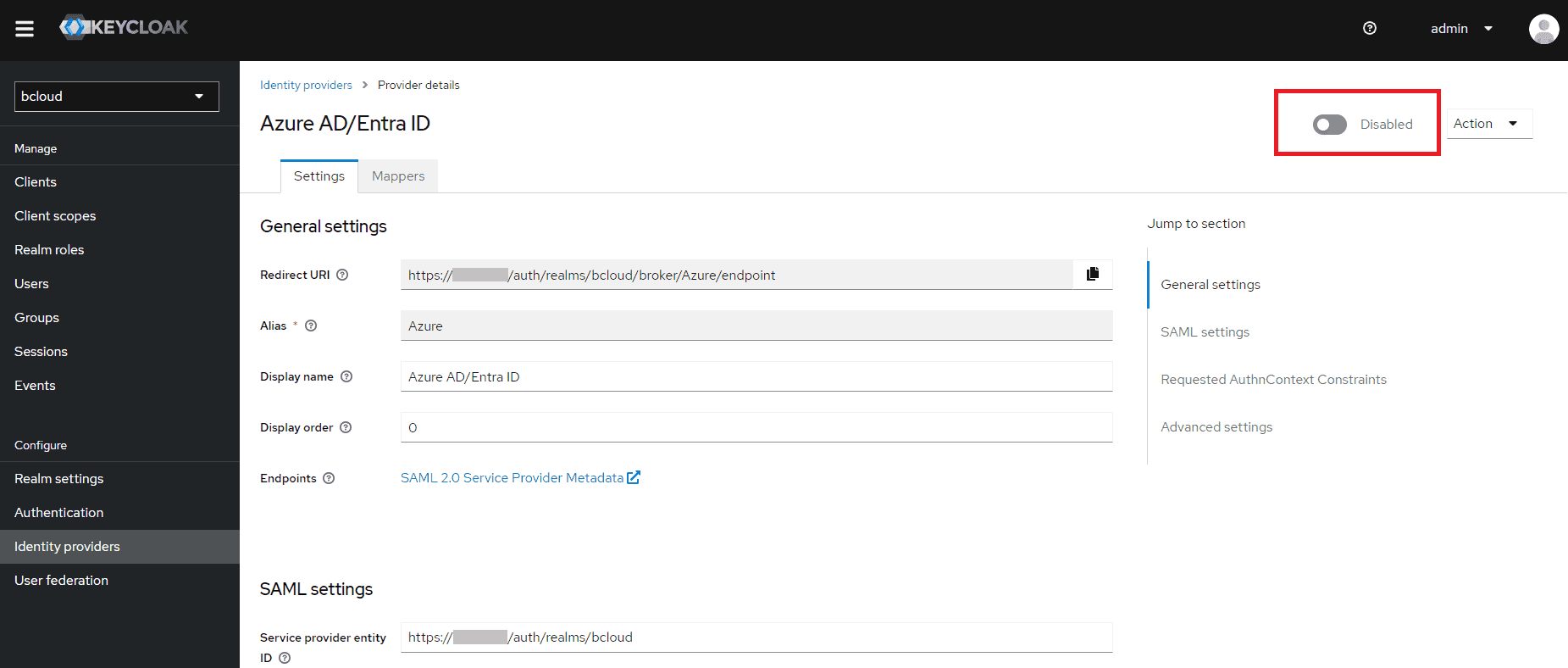
Once the configuration of your identity provider is complete, the sign in option should be available at Bravura Cloud login.

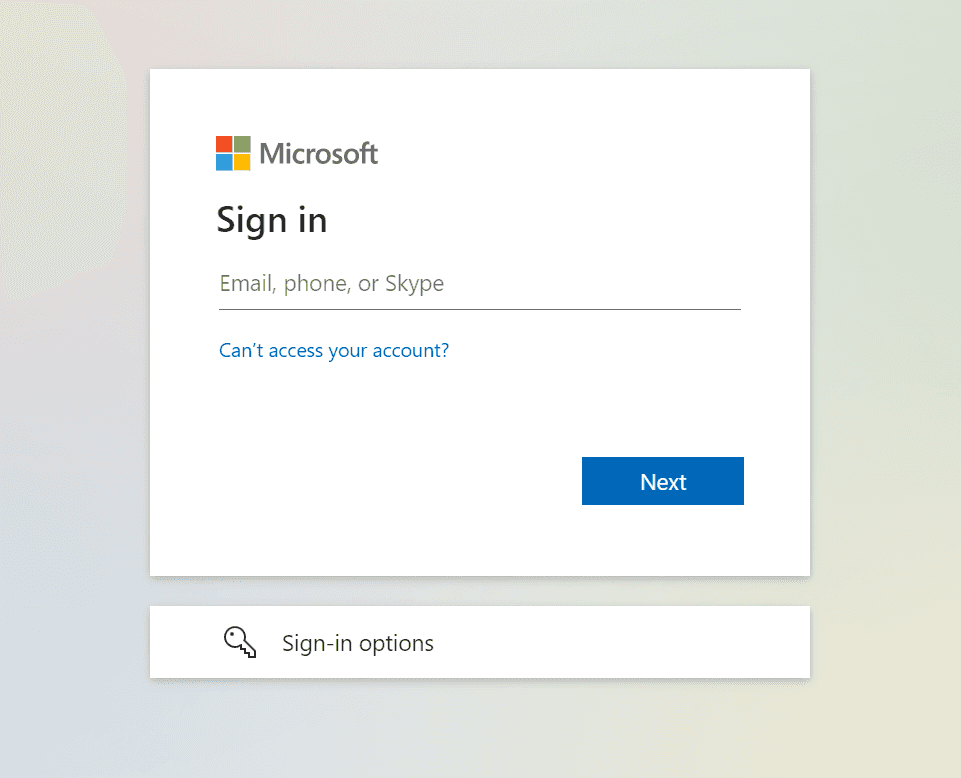
When the button is clicked, the user will be prompted to log in through Azure:
Bravura Security Fabric
Bravura Security Fabric configuration
Follow the steps to configure Bravura Security Fabric as an identity provider before proceeding: https://bravurasecuritydocs.com/#/home/2882/10/11
When configured, the sp_mapping extdb table In Bravura Security Fabric should have a row that contains the following:
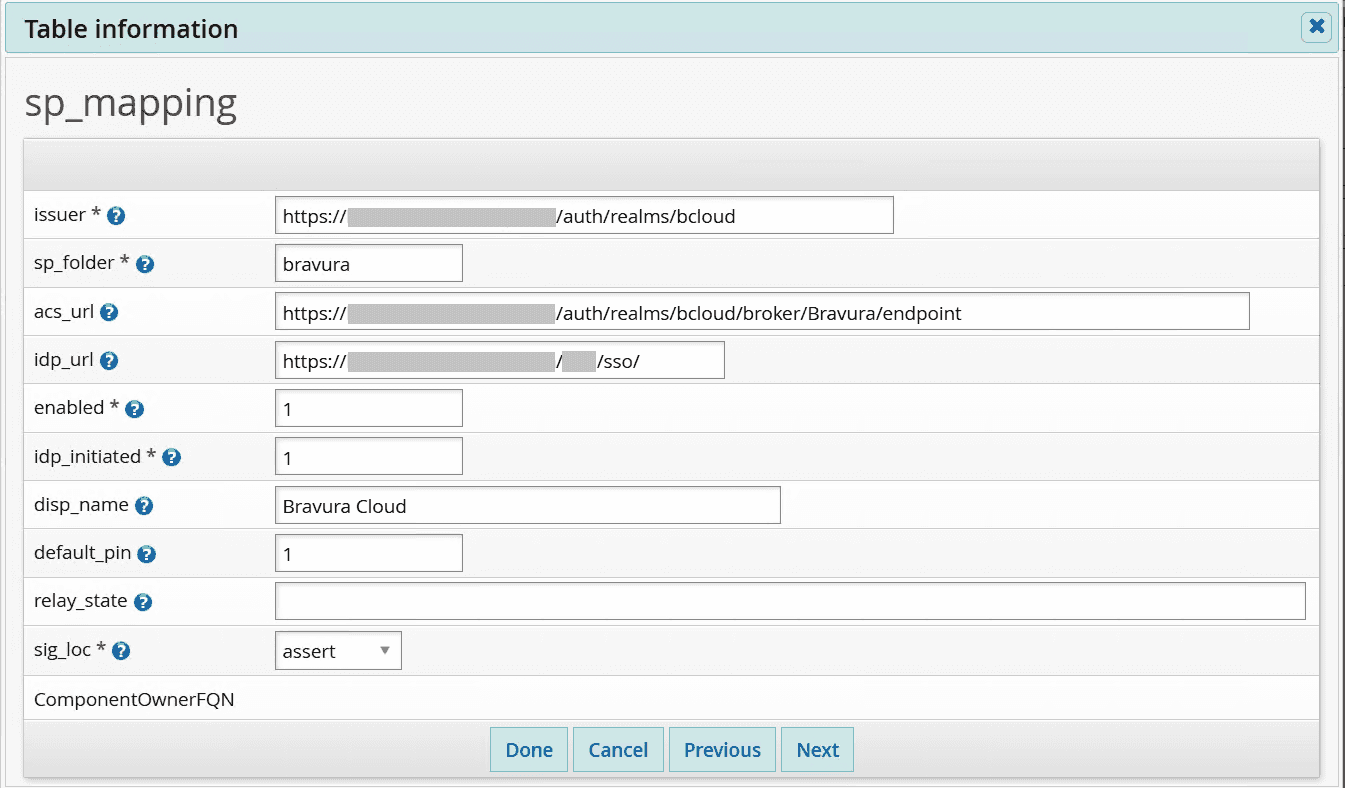
- issuer is the url of the bcloud realm in Bravura Cloud. This is in the form of
https://<bcloud-host>/auth/realms/bcloud - sp_folder is set to
bravura. This is assuming that the service provider you configured is named "bravura". - acs_url is the url to the Bravura Security Fabric identity provider endpoint in Bravura Cloud. This is in the form of
https://<bcloud-host>/auth/realms/bcloud/broker/Bravura/endpoint - idp_url is the url of the identity provider service. This is in the form of
https://<fabric-host>/<instance-name>/sso/ - enabled is set to
1. - idp_initiated is set to
1. - sig_loc is set to
assert.
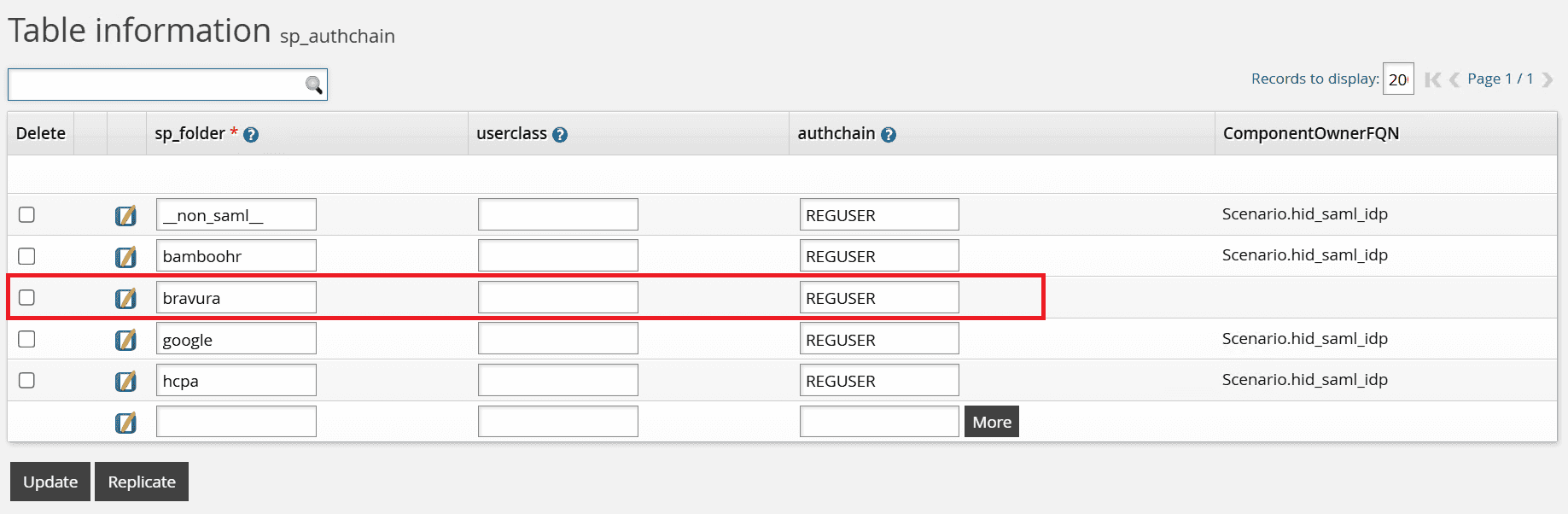
The sp_authchain extdb table should also have a row for bravura. This is assuming that the service provider you configured is named bravura:
Bravura Cloud configuration
-
Access the Bravura Security Fabric identity provider configuration: https://<bcloud-host>/auth/admin/master/console/#/bcloud/identity-providers/saml/Bravura/settings where <bcloud-host> is the host name of your Bravura Cloud deployment.
-
Note the Redirect URI value. This should match the
acs_urlin the Bravura Security Fabricsp_mappingconfiguration. -
Under SAML settings, configure the following:
- Service provider entity ID: the identifier of the BCloud realm. This is in the form of
https://<bcloud-host>/auth/realms/bcloud - Identity provider entity ID: the identifier of the Bravura Security Fabric application. This is in the form of
https://<fabric-host>/<instance-name>/sso/ - Single Sign-On service URL: the single sign-on url to the Bravura Security Fabric PSF module. This is in the form of
https://<fabric-host>/<instance-name>/sso/cgi/psf.exe
The configuration should look like the following:

- Service provider entity ID: the identifier of the BCloud realm. This is in the form of
-
Scroll down, and set Force authentication to On.
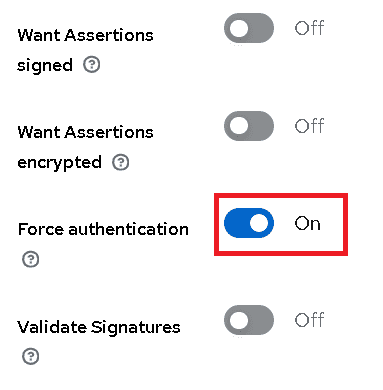
This will ensure that when the user logs out, they will need to re-authenticate when they access Bravura Cloud.
-
Click Save.
-
Scroll to the top, and click the button beside Disabled to enable the identity provider. It should then say Enabled.
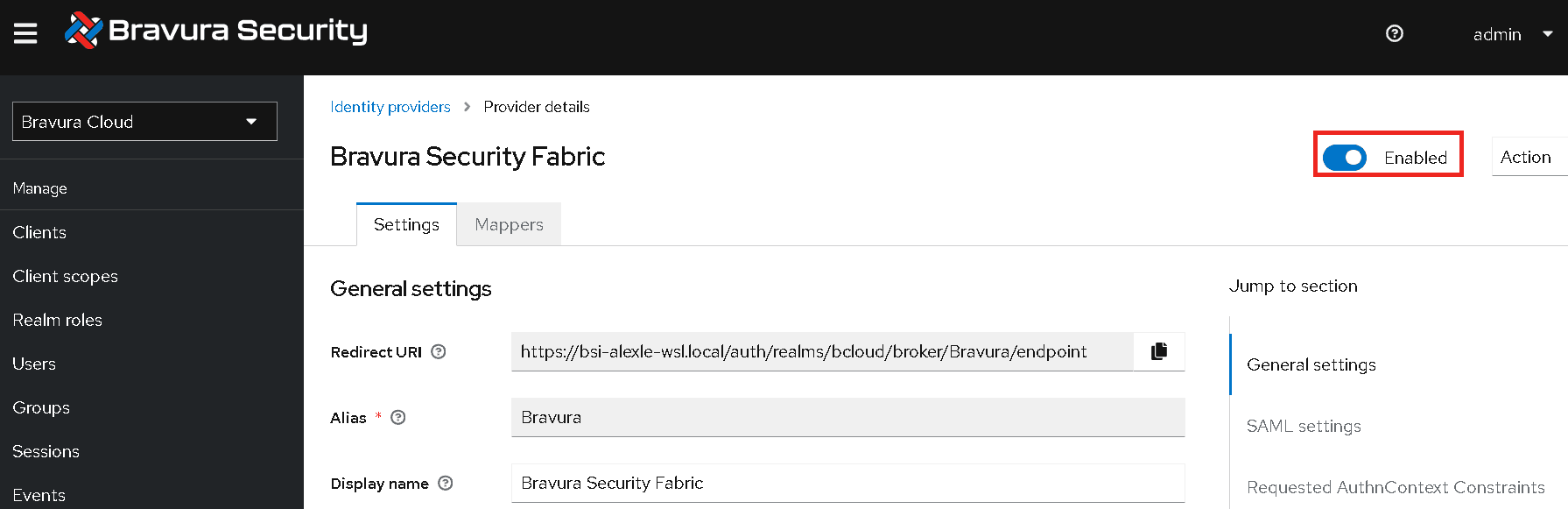
Once the configuration of your identity provider is complete, the sign in option should be available at Bravura Cloud login.

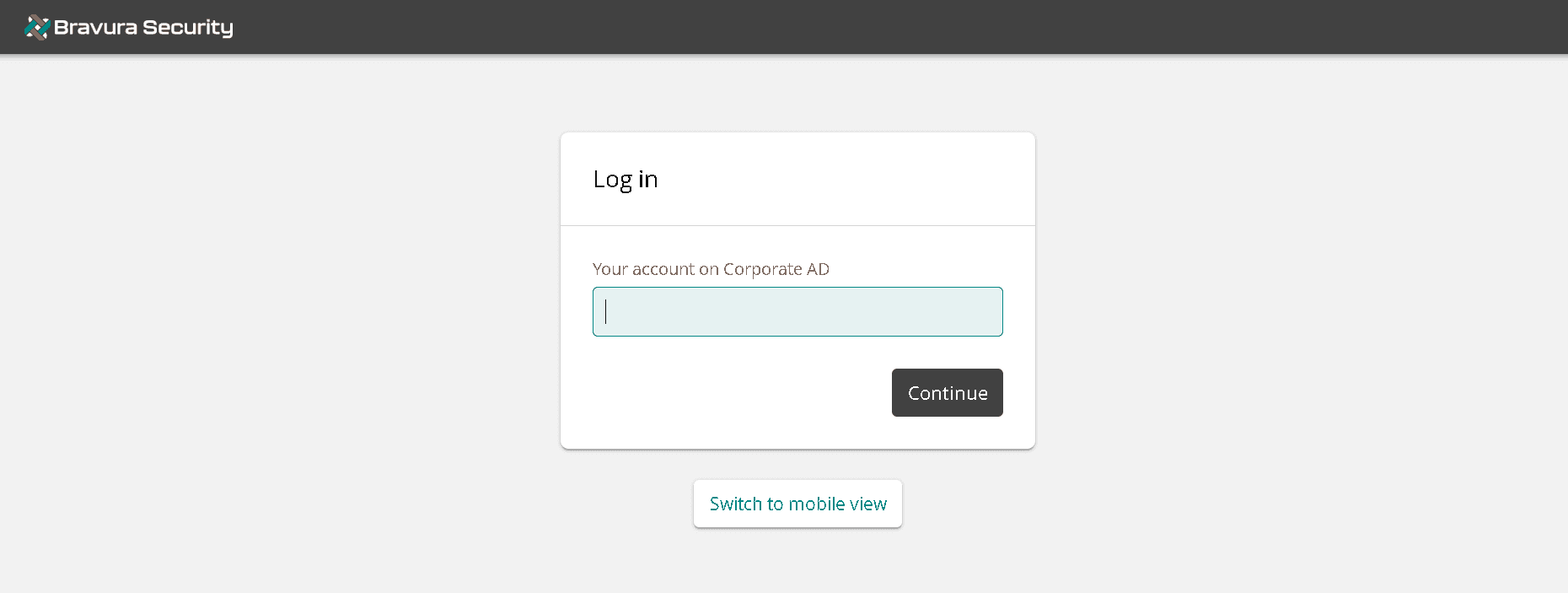
When the button is clicked, the user will be prompted to log in through Bravura Security Fabric:
Okta
Okta Admin configuration
-
Sign in to Okta as an admin. The url will vary, but typically follows the format of
https://<organization>.okta.com -
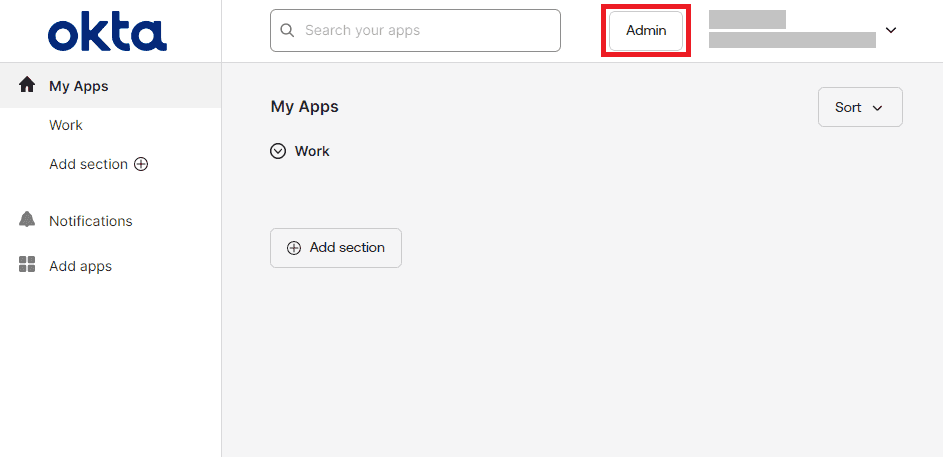
On the main page, click the Admin button.
-
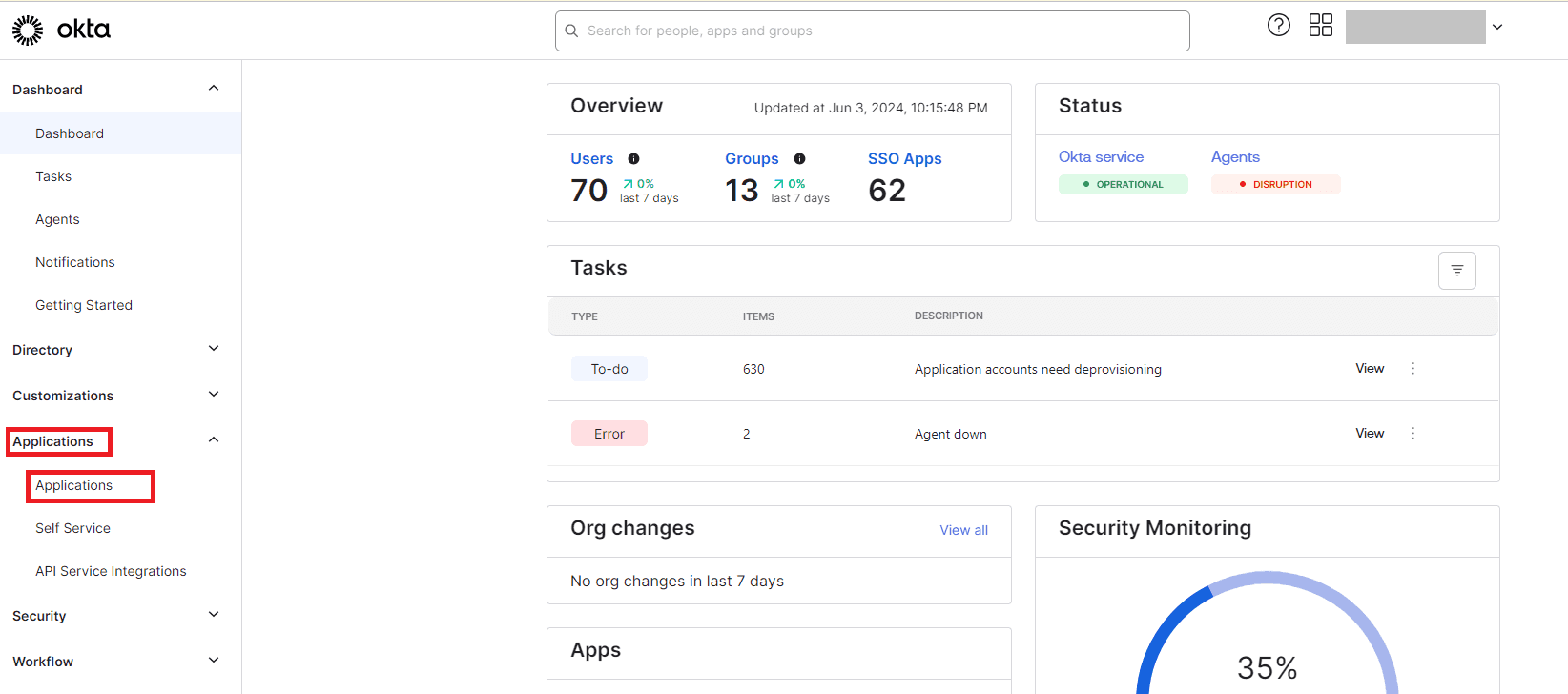
From the left pane, click Applications > Applications.
-
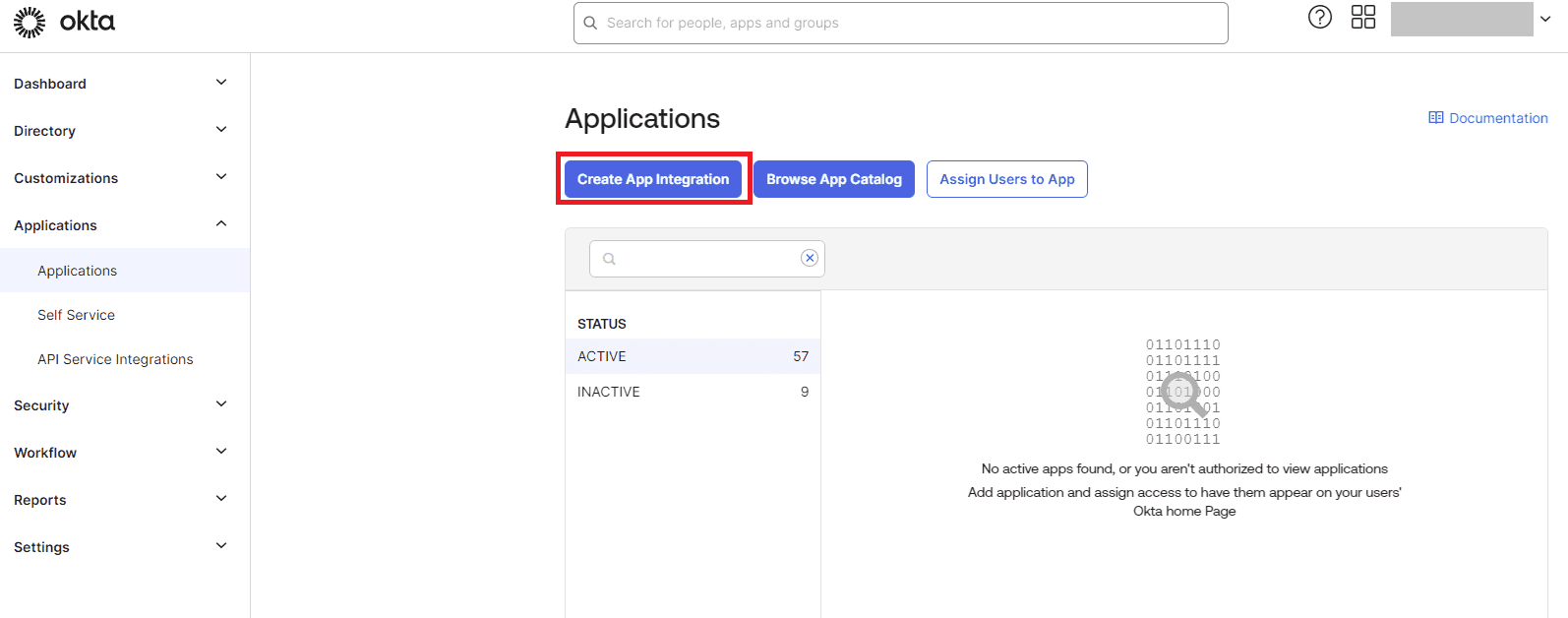
Click Create App Integration.
-
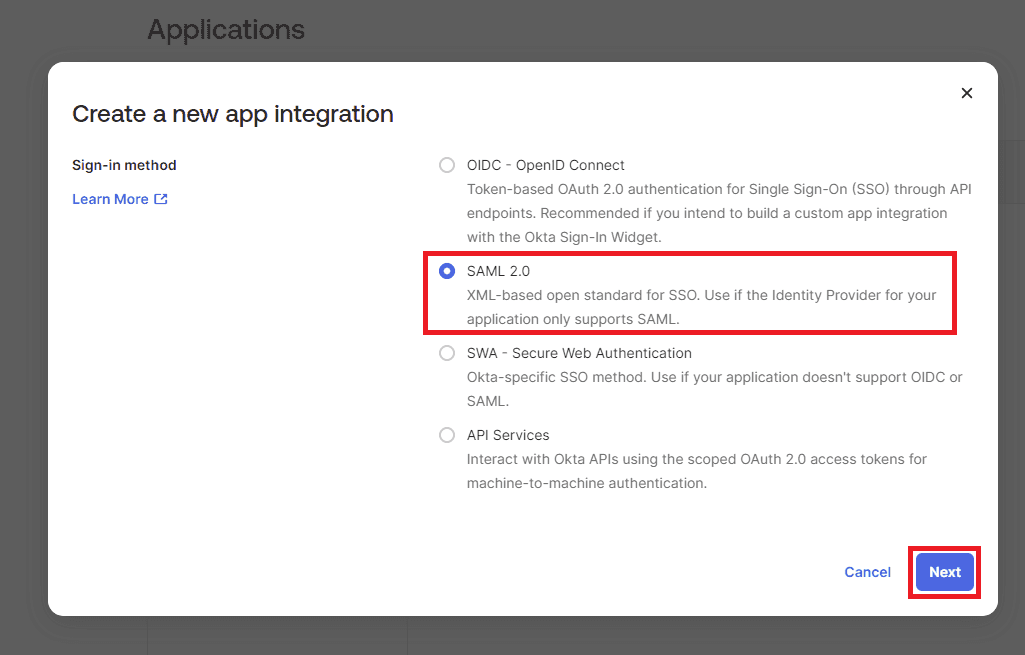
Select SAML 2.0 and click Next.
-
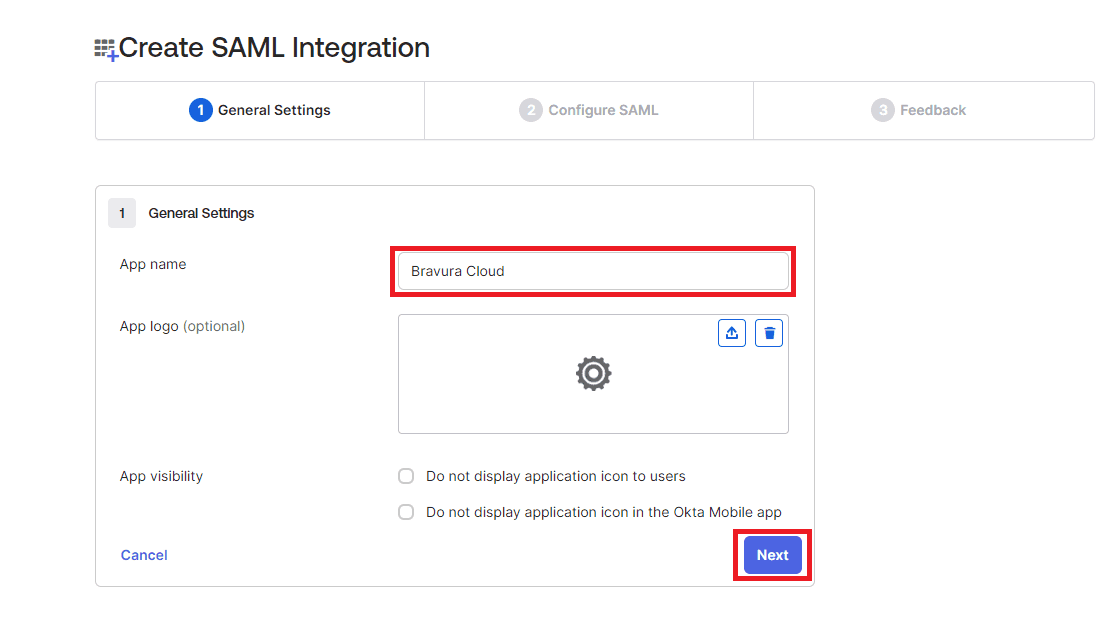
Specify the App name and upload an optional logo, and click Next.
-
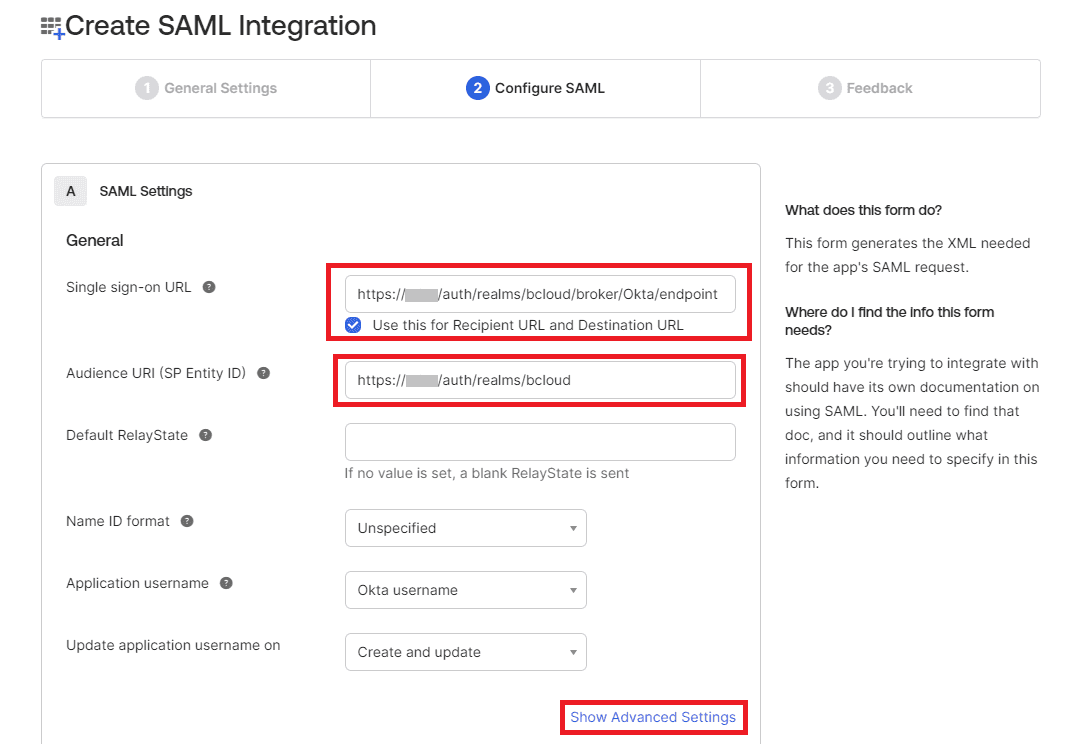
Configure the following:
- Set the Single sign-on URL to be
https://<bcloud-host>/auth/realms/bcloud/broker/Okta/endpoint, replacing<bcloud-host>with the actual host name of the Bravura Cloud deployment.- Ensure Use this for Recipient URL and Destination URL is selected.
- Set the Audience URI (SP Entity ID) to be
https://<bcloud-host>/auth/realms/bcloud, replacing<bcloud-host>with the actual host name of the Bravura Cloud deployment.
The configuration should look like the following:
- Set the Single sign-on URL to be
-
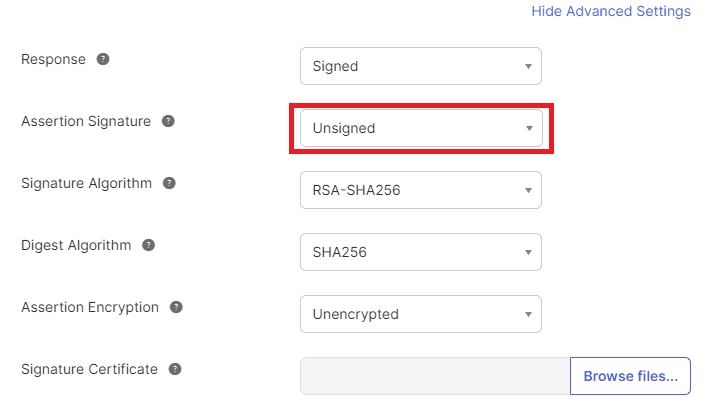
Click Show Advanced Settings.
-
Set Assertion Signature to Unsigned and leave everything else as default.
-
Set the account attribute mappings. You can use the following as a guideline.

-
Click Next.
-
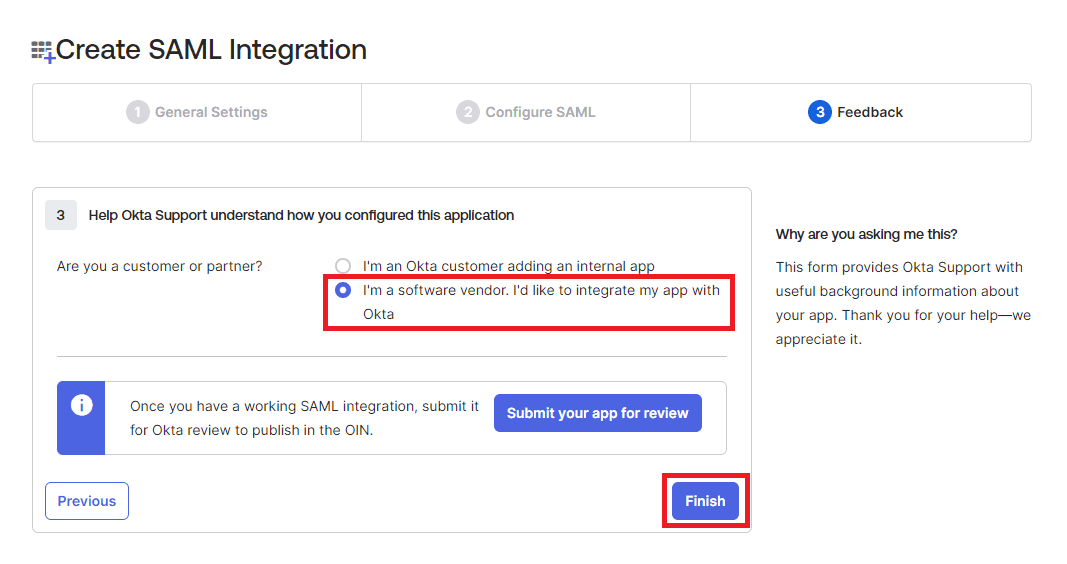
Select I'm a software vendor. I'd like to integrate my app with Okta and click Finish.
-
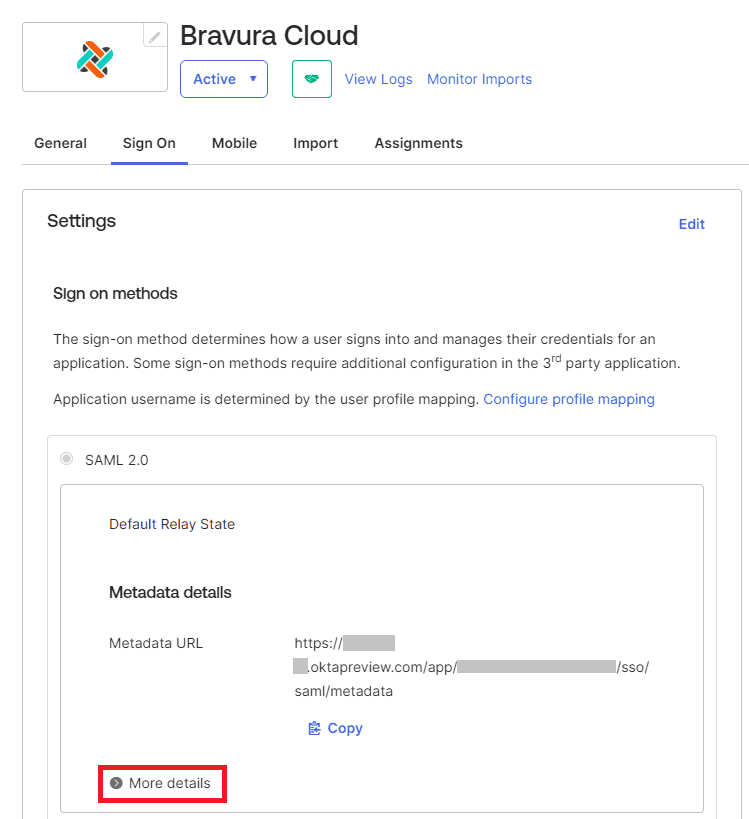
Upon creation of the application, The Sign on tab should appear with the metadata details. Click More details.
-
Make note of the following info. This will be required when configuring the identity provider details in Keycloak.
- Sign on URL
- Issuer

-
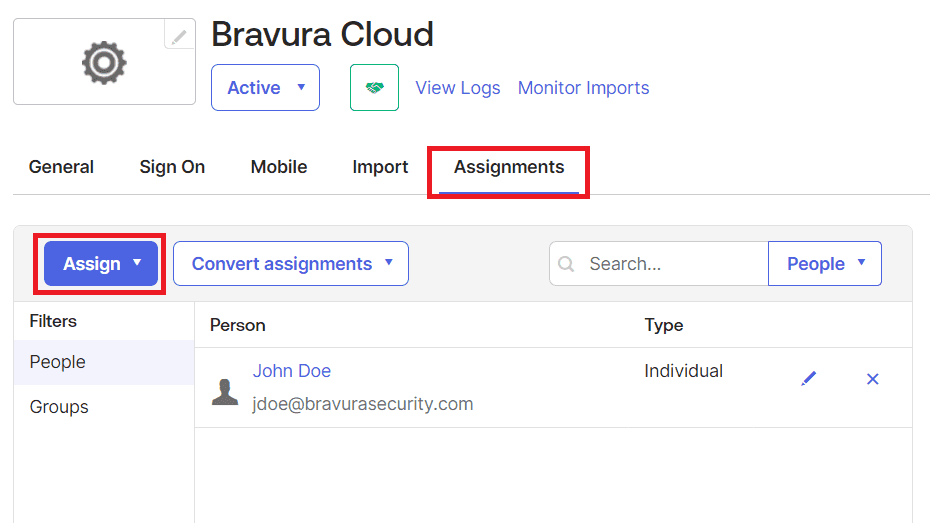
Scroll up and click Assignments. Click Assign to add users and groups to the Okta application.
Bravura Cloud configuration
-
Access the Okta identity provider configuration: https://<bcloud-host>/auth/admin/master/console/#/bcloud/identity-providers/saml/Okta/settings where <bcloud-host> is the host name of your Bravura Cloud deployment.
-
Note the Redirect URI value. This should match the "Reply URL" in the Azure application SAML configuration.
-
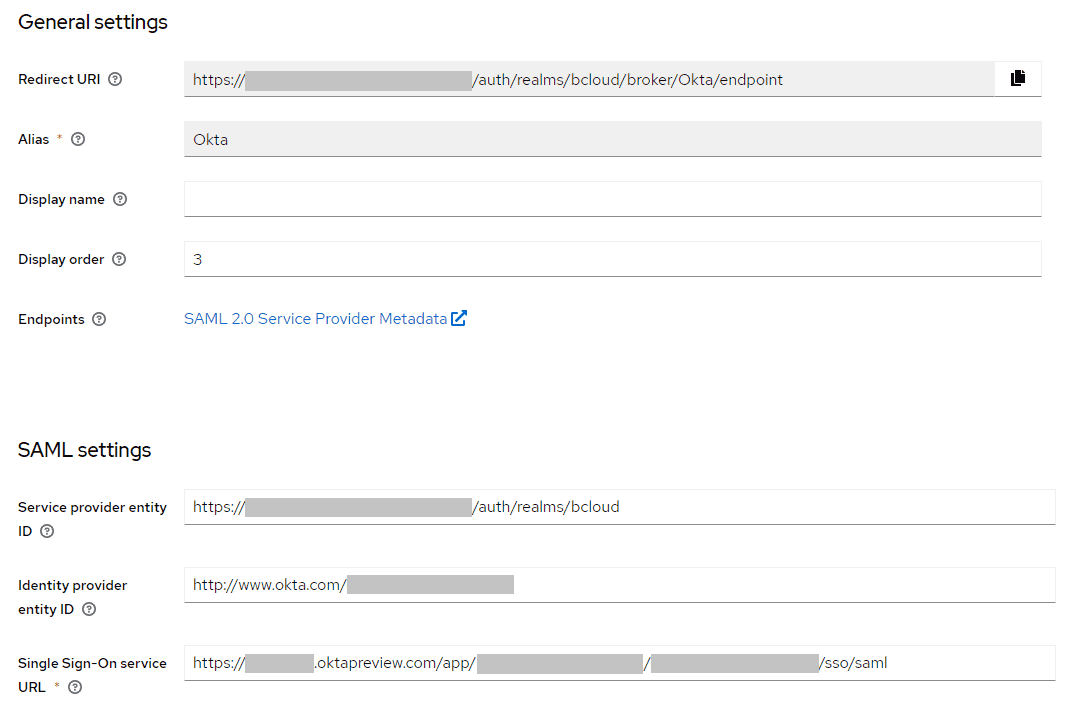
Under SAML settings, configure the following:
- Service provider entity ID: the identifier of the BCloud realm
- Identity provider entity ID: the identifier of the Okta application
- Single Sign-On service URL: the Login URL for the Okta application
The configuration should look like the following:
-
Scroll down, and set Force authentication to On.
This will ensure that when the user logs out, they will need to re-authenticate when they access Bravura Cloud.
-
Click Save
-
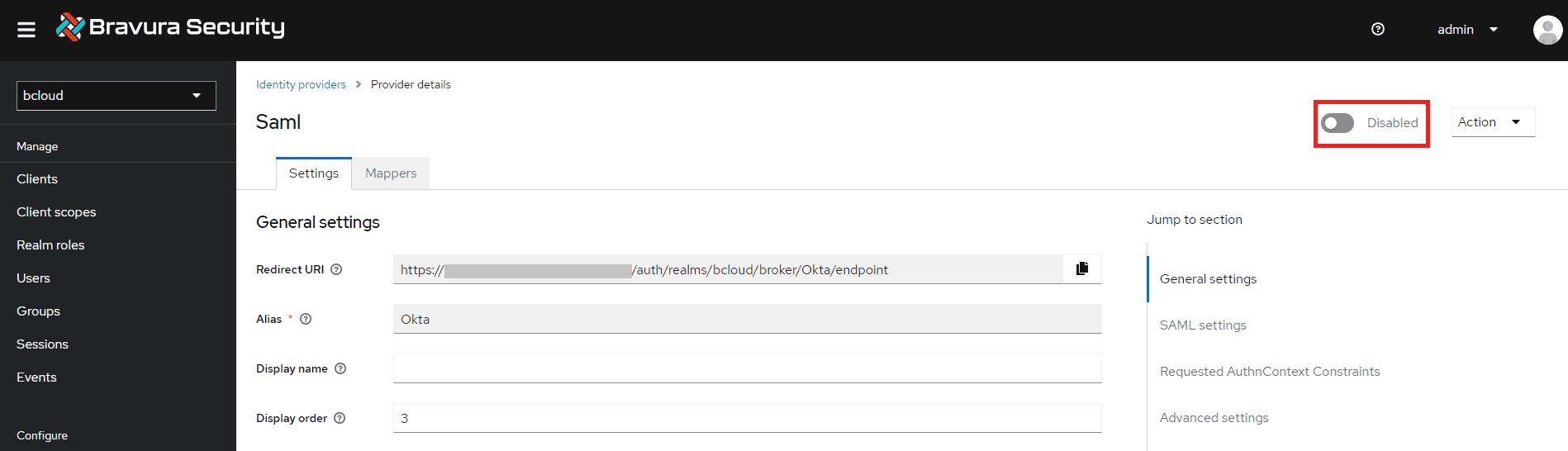
Scroll to the top, and click the button beside Disabled to enable the identity provider. It should then say Enabled.
Once the configuration of your identity provider is complete, the sign in option should be available at Bravura Cloud login.
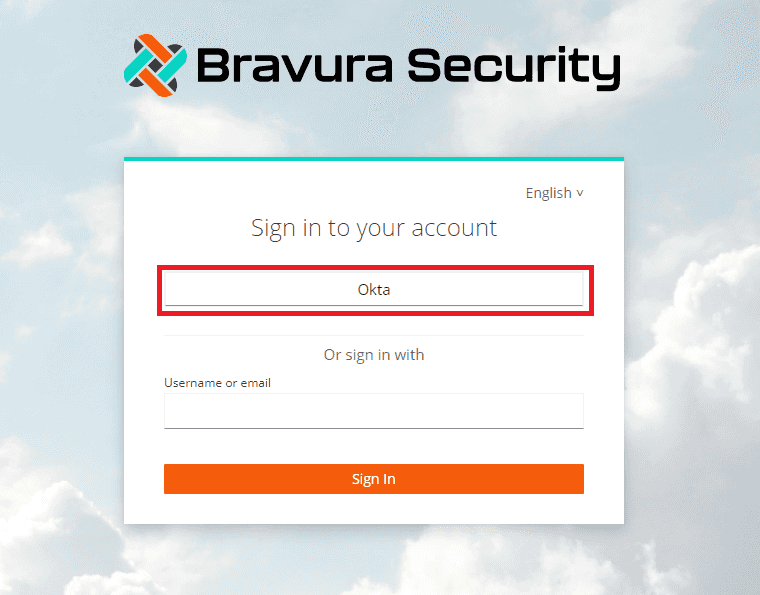
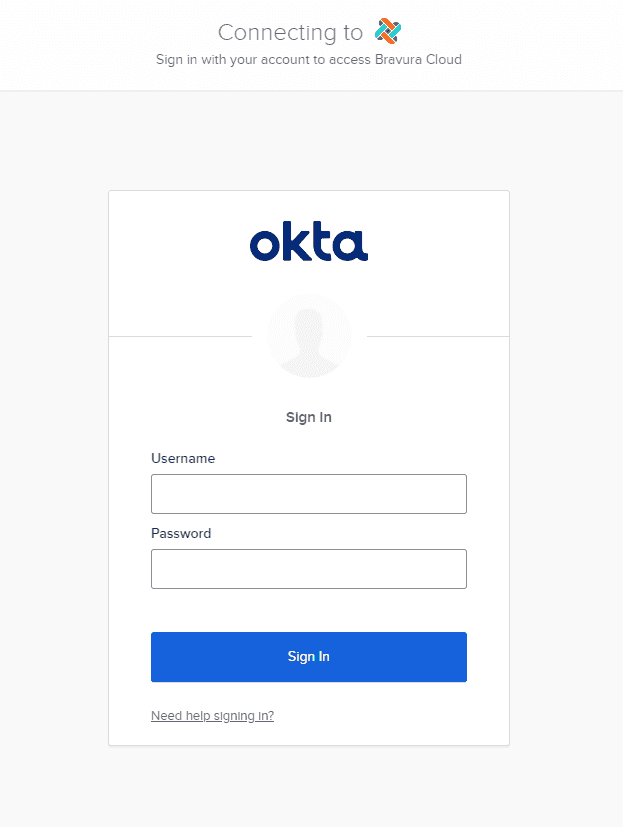
When the button is clicked, the user will be prompted to log in through Okta:
Keycloak IDP
Keycloak identity provider configuration
The following steps involve creating a separate realm specifically to use Keycloak as an identity provider. It is highly recommended that you do not use the existing BCloud realm for this purpose.
-
Log in to the Keycloak Administration Console.
-
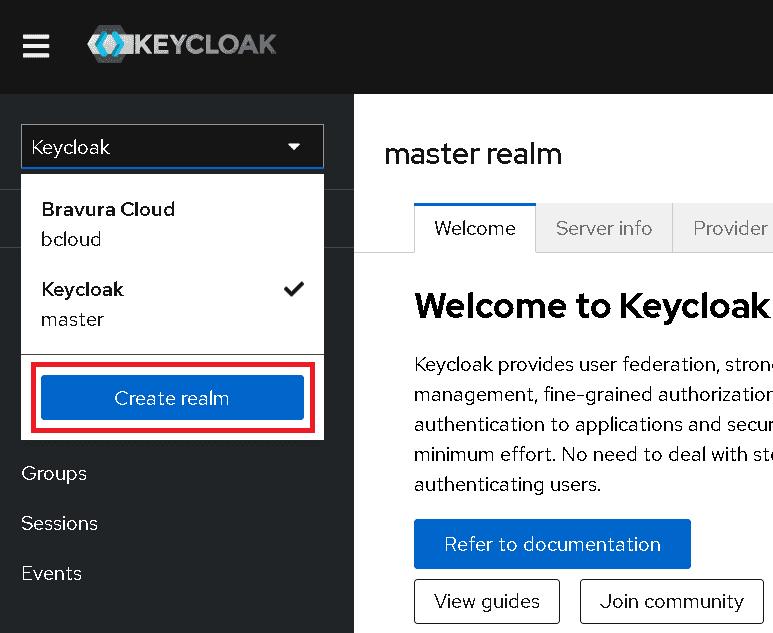
Click on the realm dropdown on the top left.
-
Click Create realm.
-
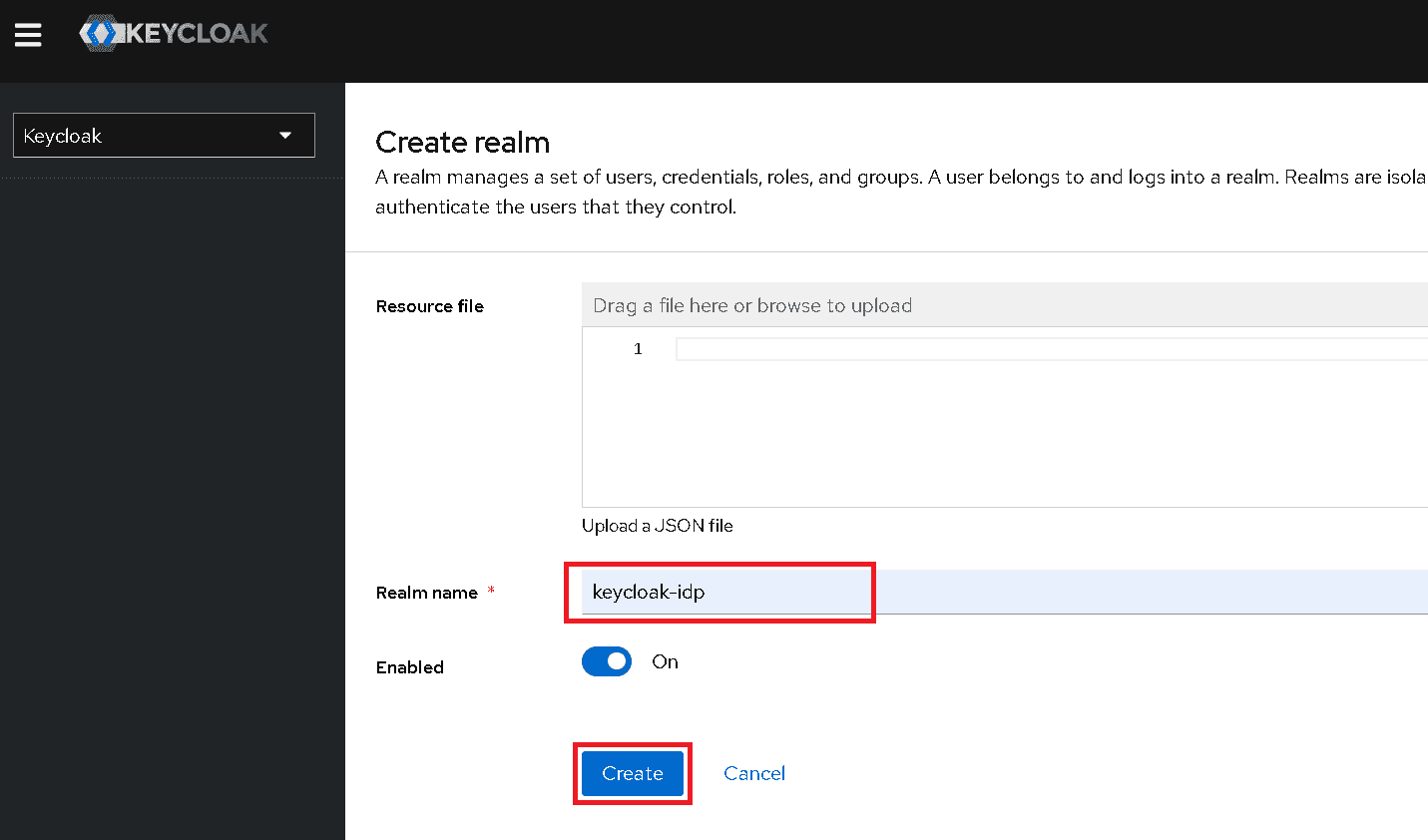
Specify a Realm name and click Create.
-
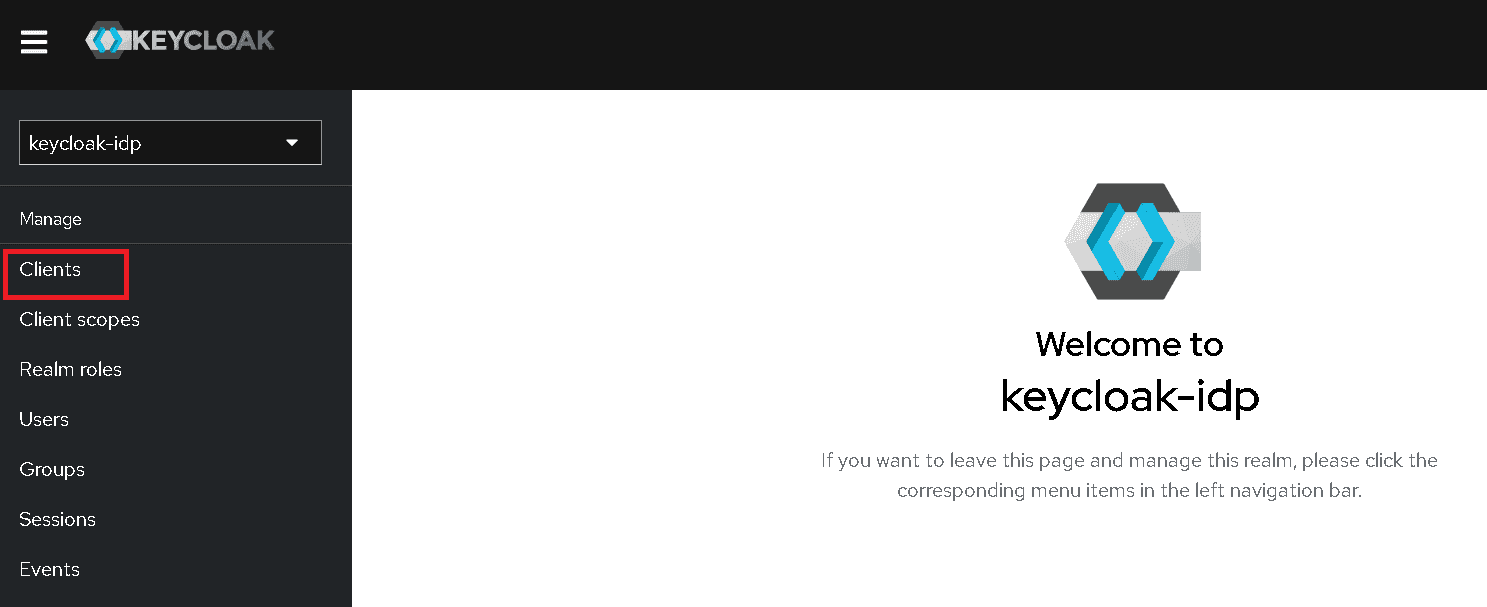
Click Clients on the left to create a client in the realm.
-
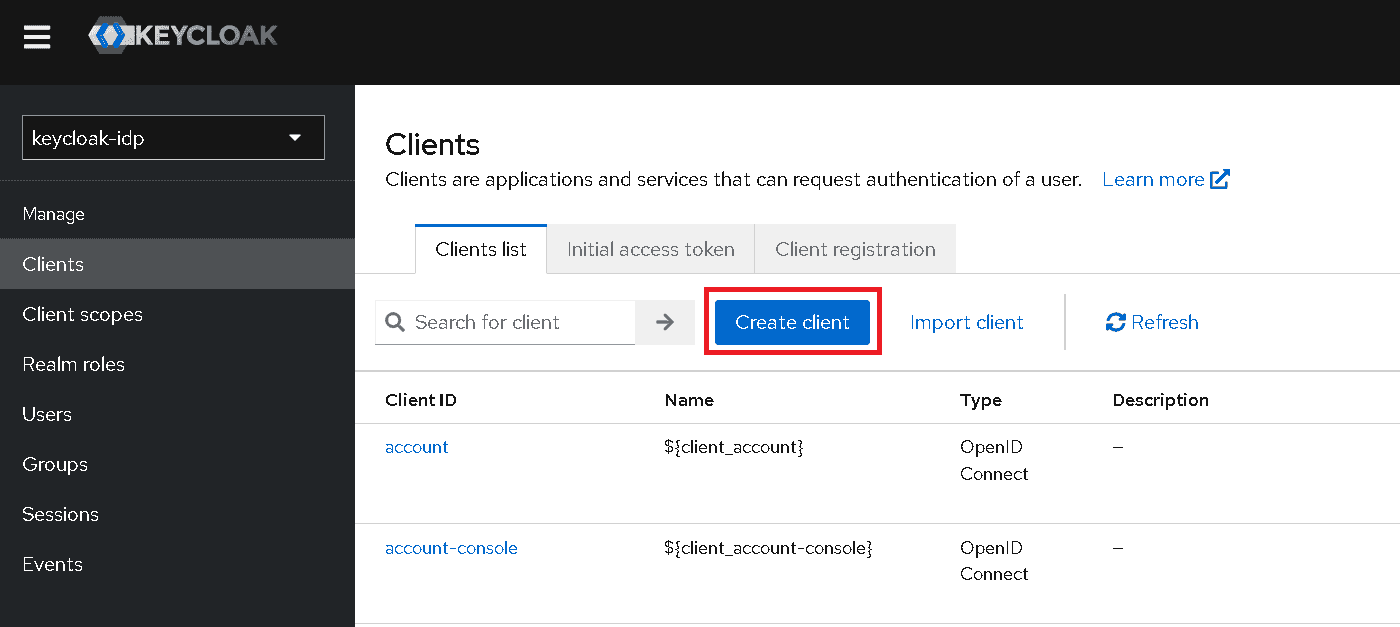
Click Create client.
-
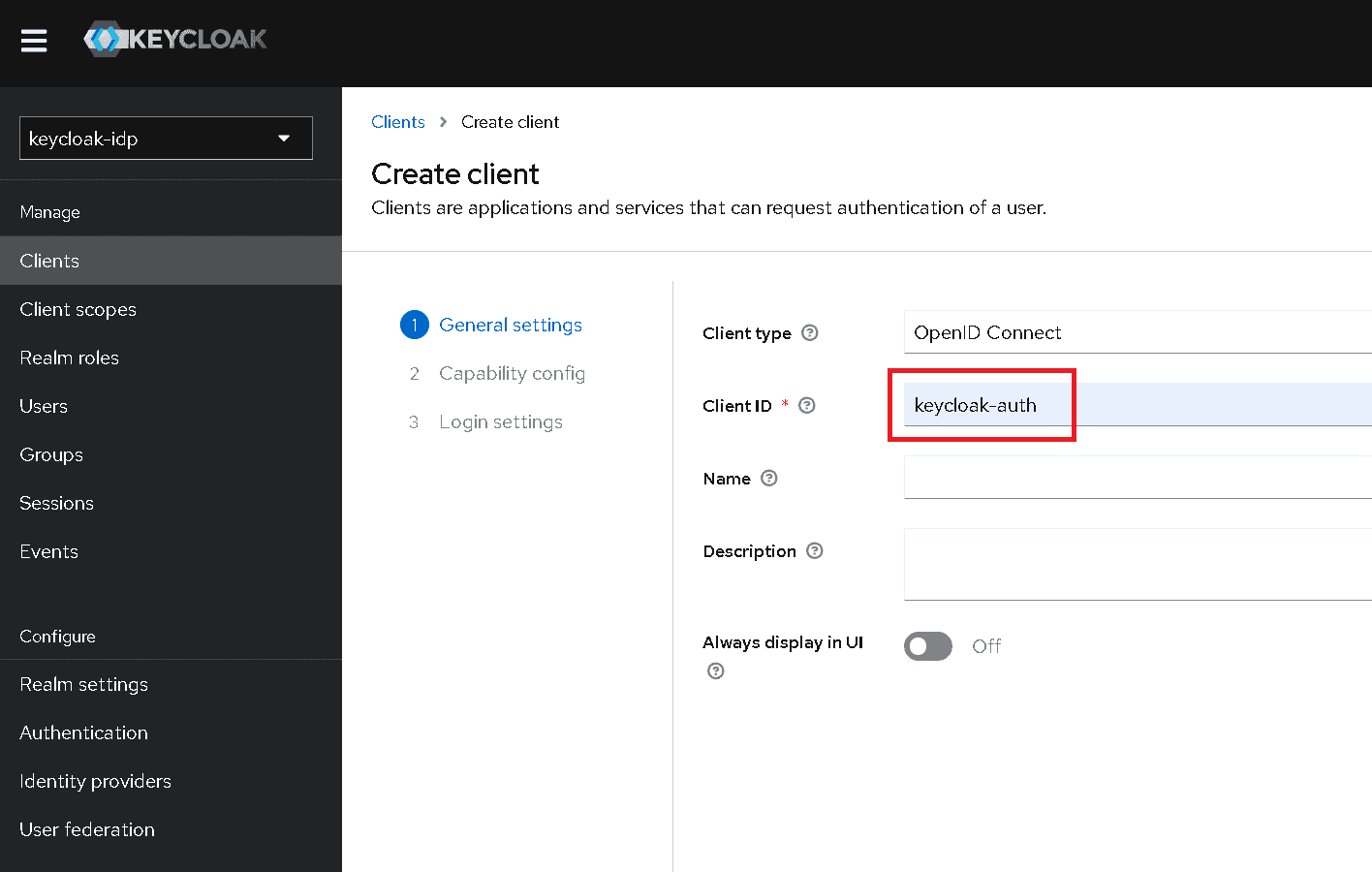
Specify a Client ID.
-
Click Next.
-
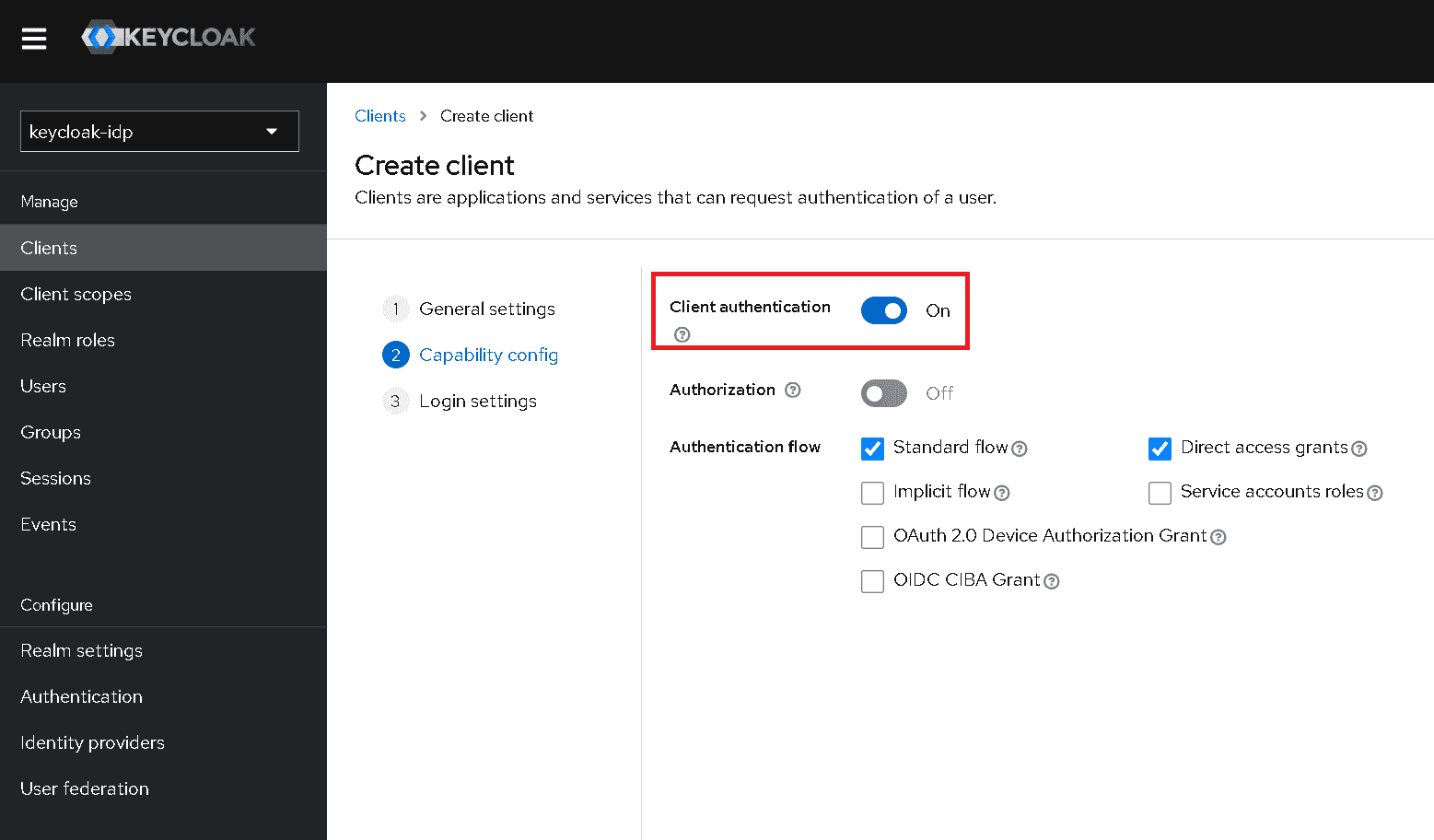
Set Client authentication to On.
-
Click Next.
-
Set the Root URL to the full FQDN of the Keycloak identity provider host, then click Save.

-
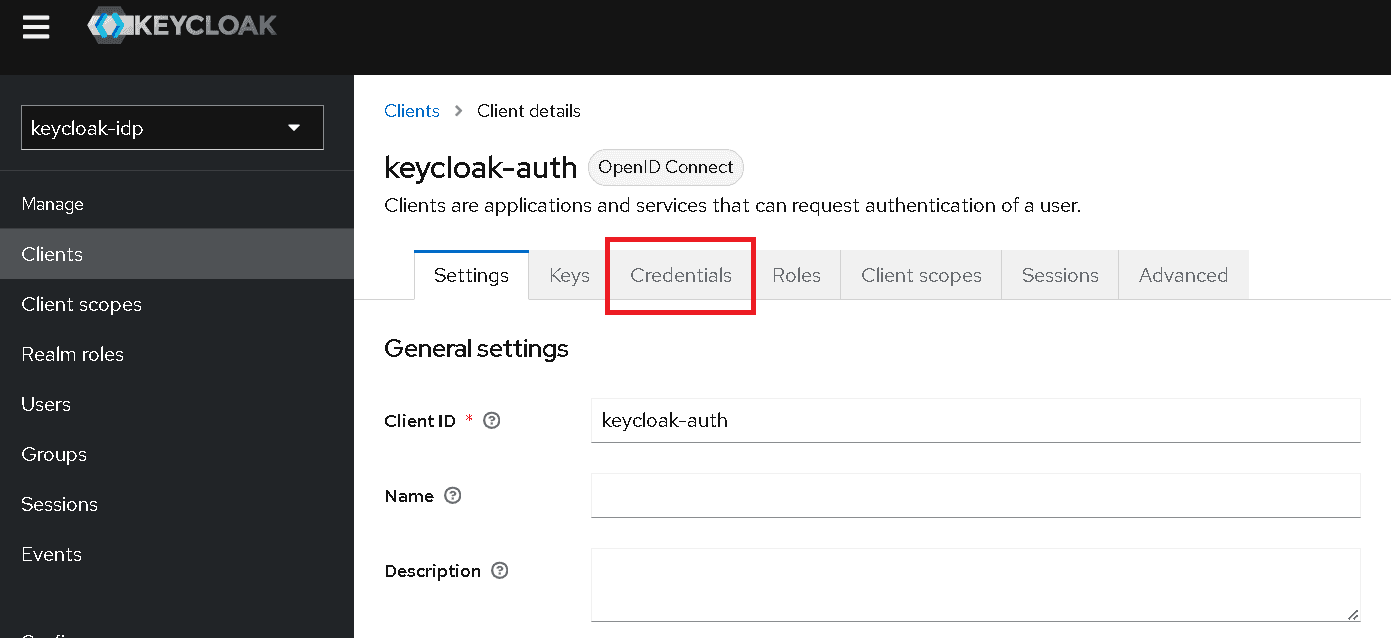
Click the Credentials tab.
-
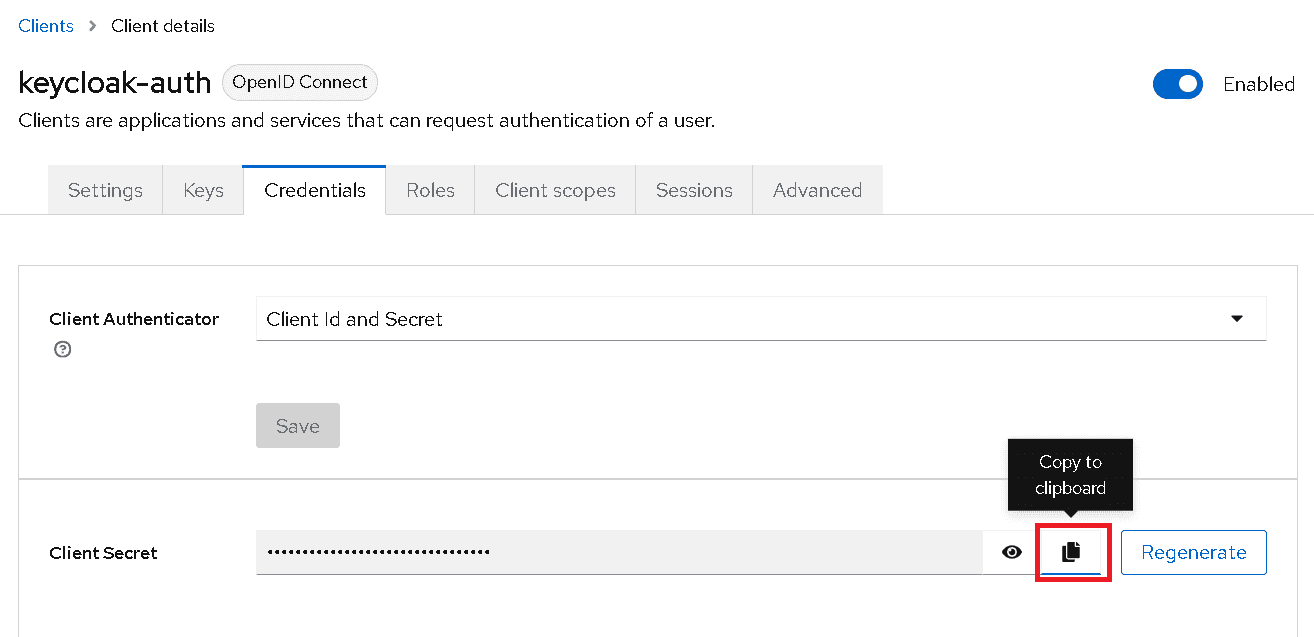
Click on the Copy to clipboard button to obtain the secret for the client. Save this secret as this will be needed later on.
Bravura Cloud configuration
-
Access the Keycloak identity provider configuration: https://<bcloud-host>/auth/admin/master/console/#/bcloud/identity-providers/keycloak-oidc/keycloak-oidc/settings where <bcloud-host> is the host name of your Bravura Cloud deployment.
-
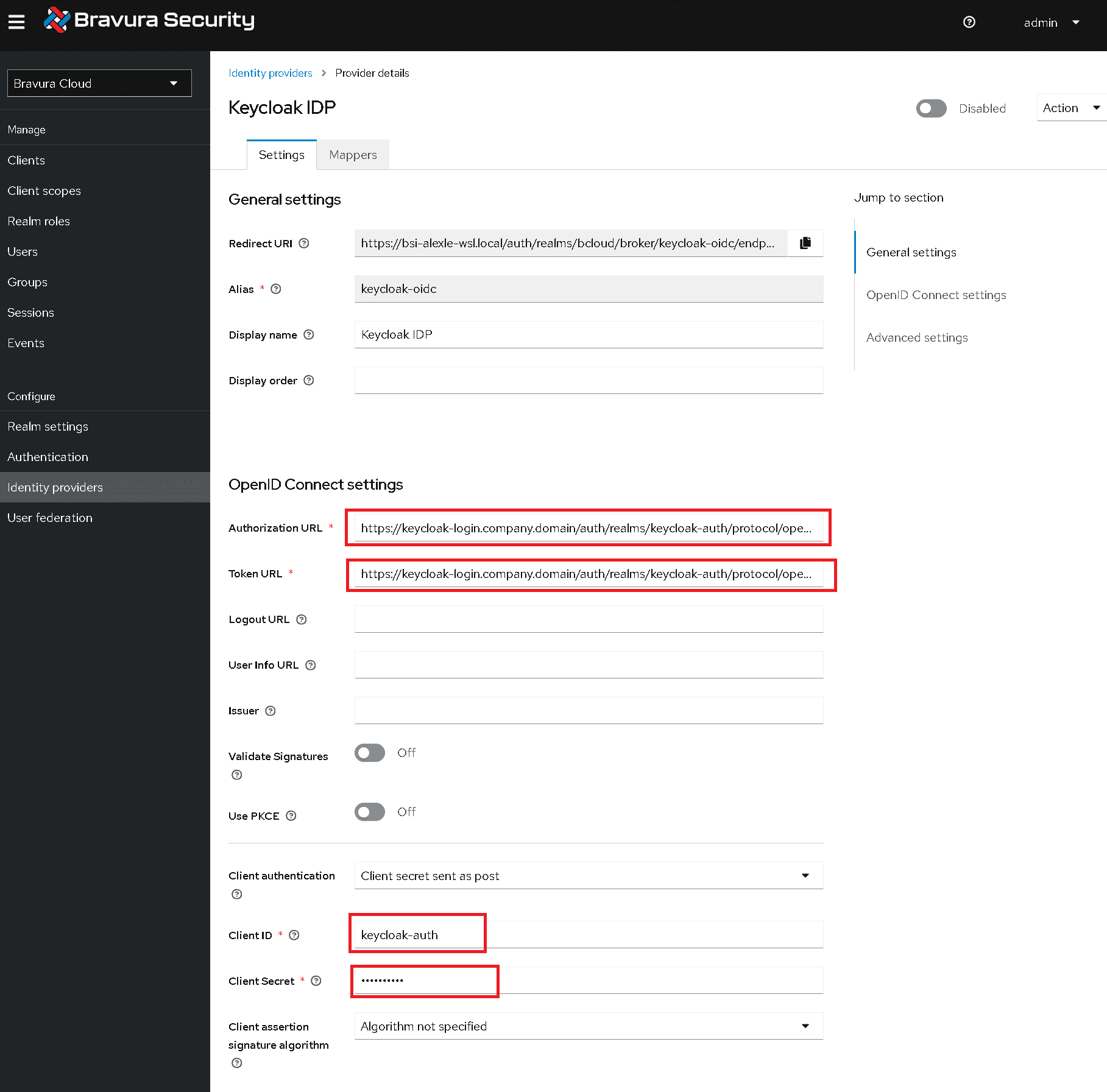
Under OpenID Connect settings, configure the following:
- Authorization URL: the authentication URL of the Keycloak IDP realm. This is in the form of
https://<keycloak-idp-host>/realms/<keycloak-idp-realm>/protocol/openid-connect/auth - Token URL: the token URL of the Keycloak IDP realm. This is in the form of
https://<keycloak-idp-host>/realms/<keycloak-idp-realm>/protocol/openid-connect/token - Client authentication is set to
Client secret sent as post - Client ID is set to the client ID in the Keycloak IDP realm.
- Client Secret is the auto-generated secret for the client in the Keyclock IDP realm.
The configuration should look like the following:
- Authorization URL: the authentication URL of the Keycloak IDP realm. This is in the form of
-
Scroll down, and click Advanced to expand additional options.
-
Set Prompt to Login.
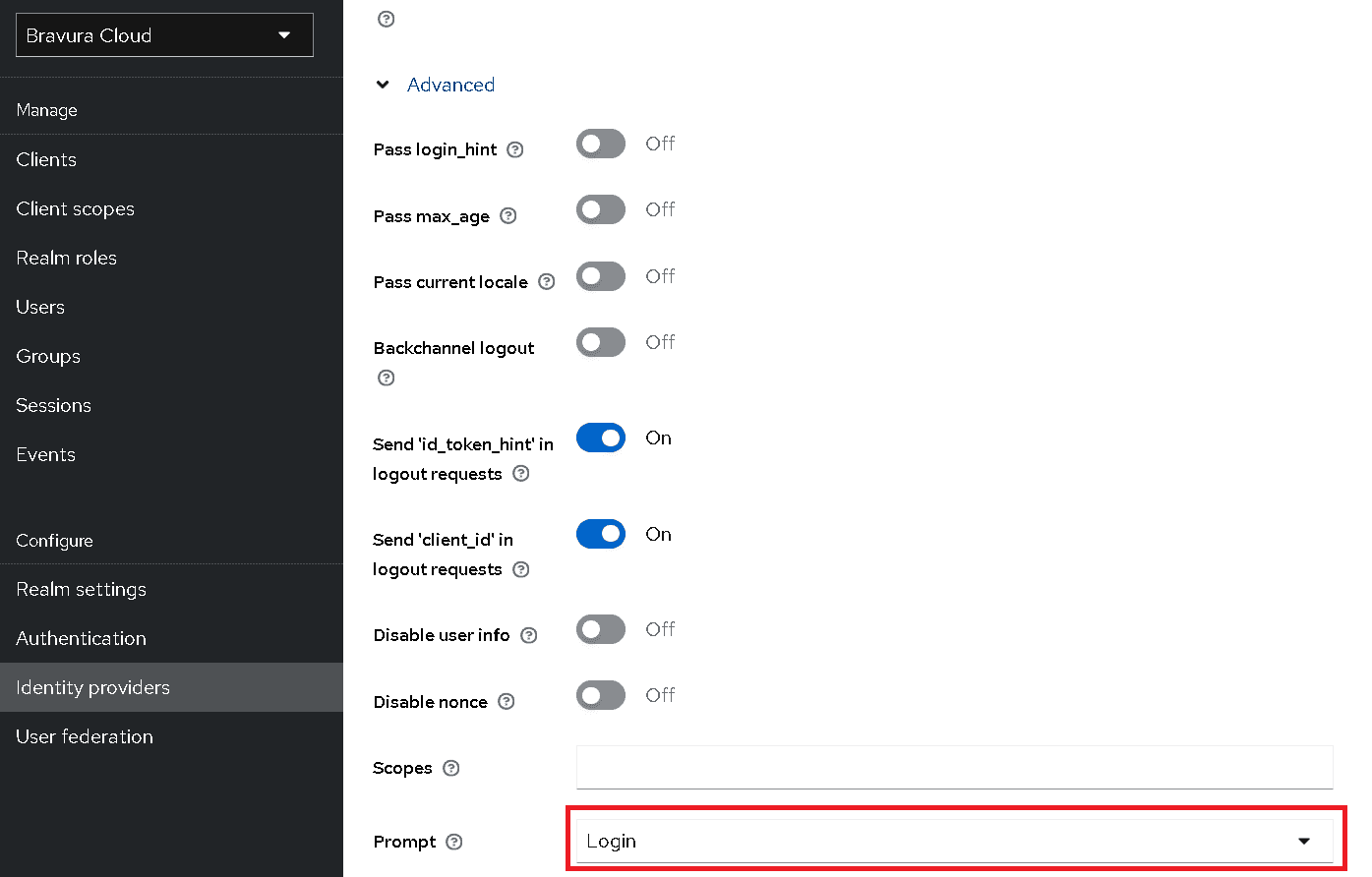
This will ensure that when the user logs out, they will need to re-authenticate when they access Bravura Cloud.
-
Click Save
-
Scroll to the top, and click the button beside Disabled to enable the identity provider. It should then say Enabled.
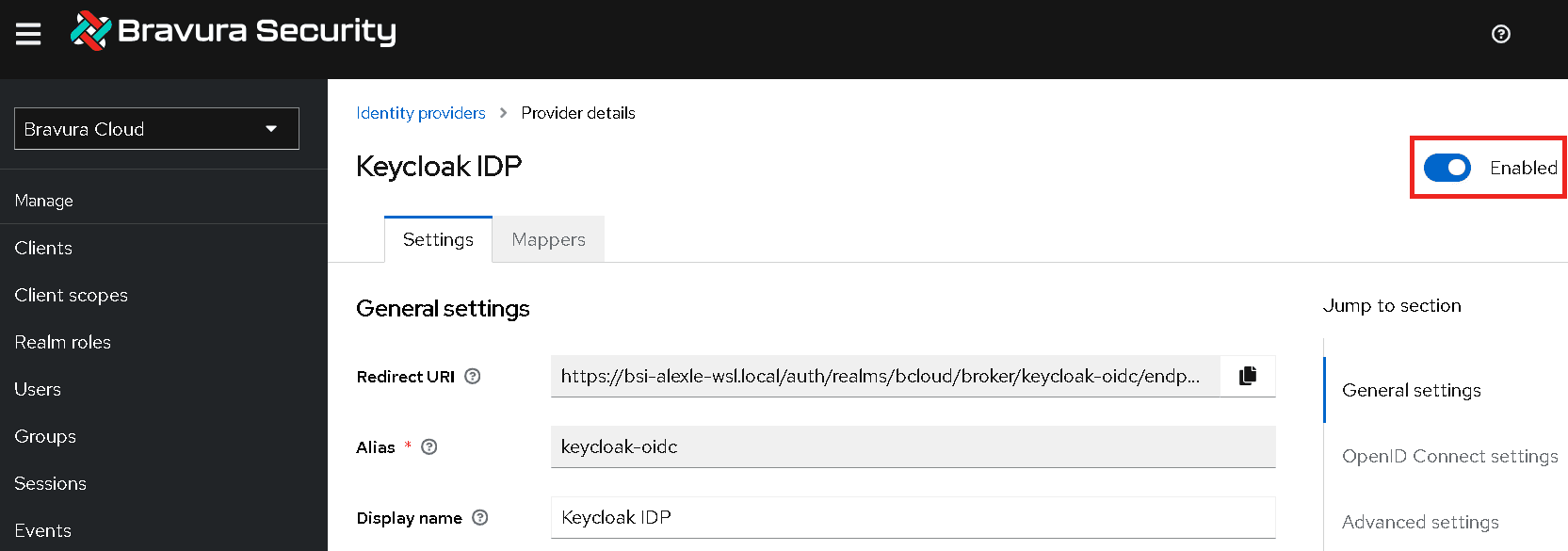
Once the configuration of your identity provider is complete, the sign in option should be available at Bravura Cloud login.

When the button is clicked, the user will be prompted to log in through Keycloak: