Bring your own authentication
Configure passwordless authentication
Windows Hello
- Log into Keycloak account management: https://localhost/auth/realms/bcloud/account/#/
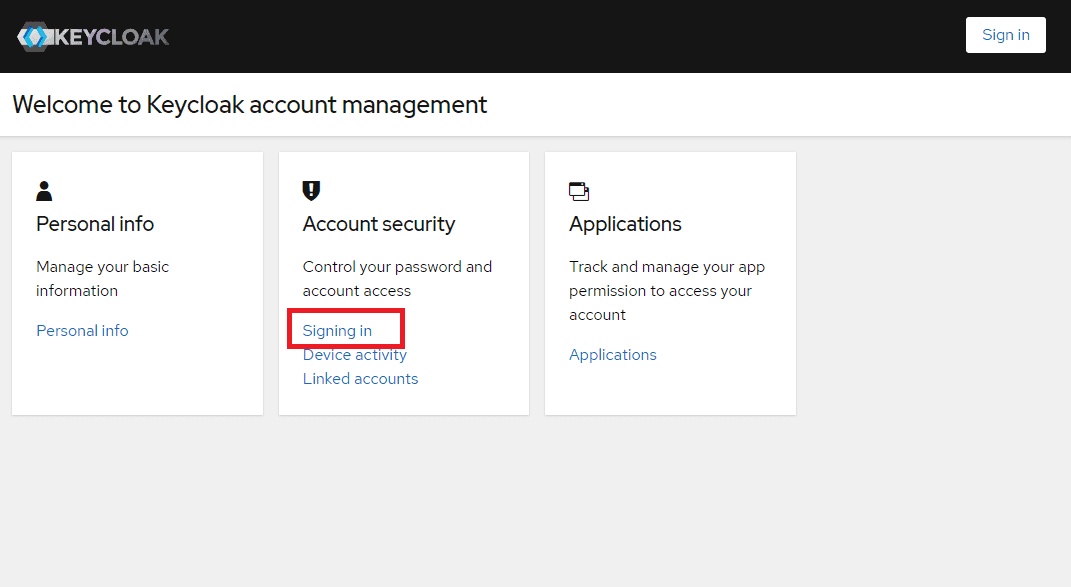
- Under Account security, select "Signing in"
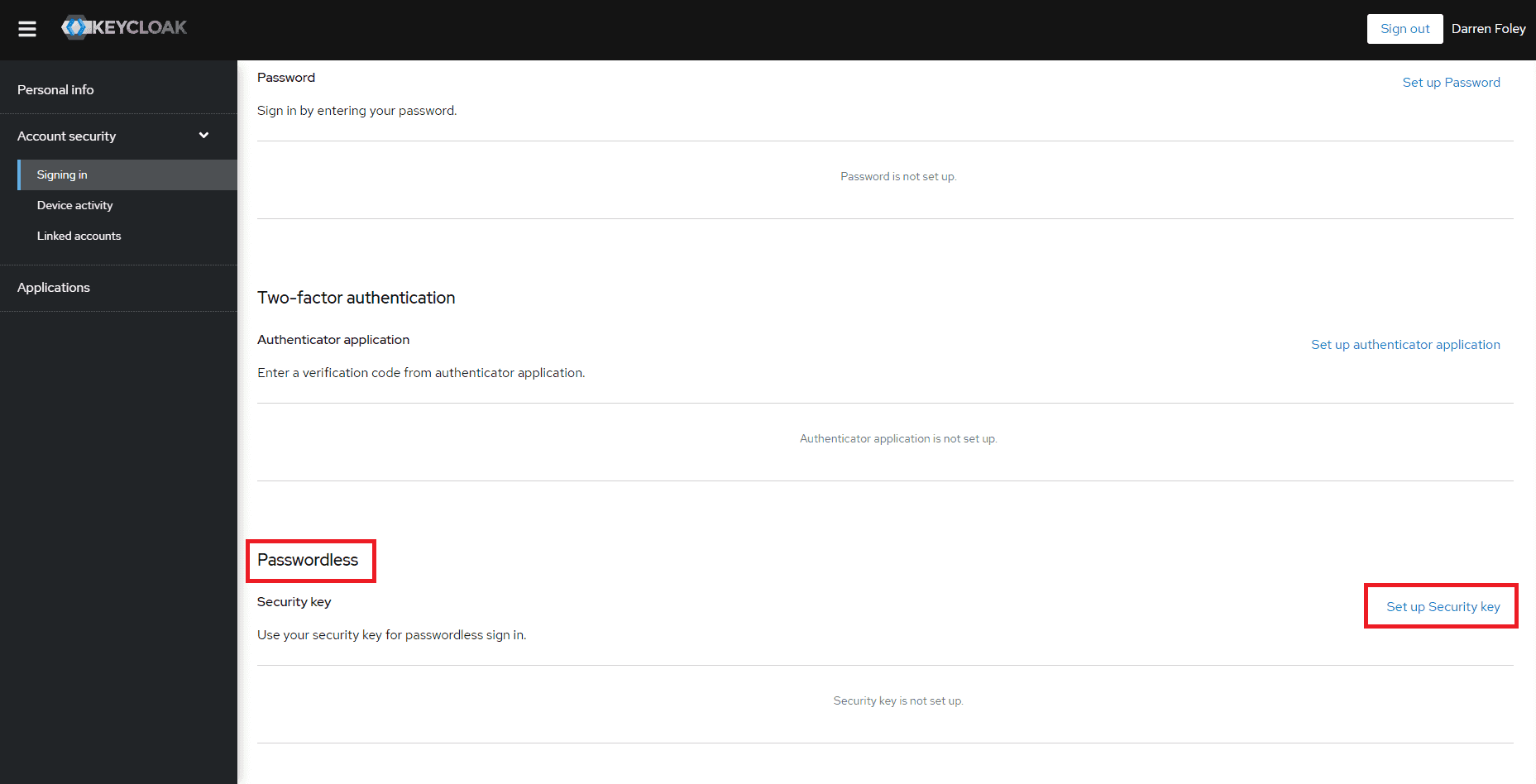
- Find "Passwordless", and select "Set up Security key"
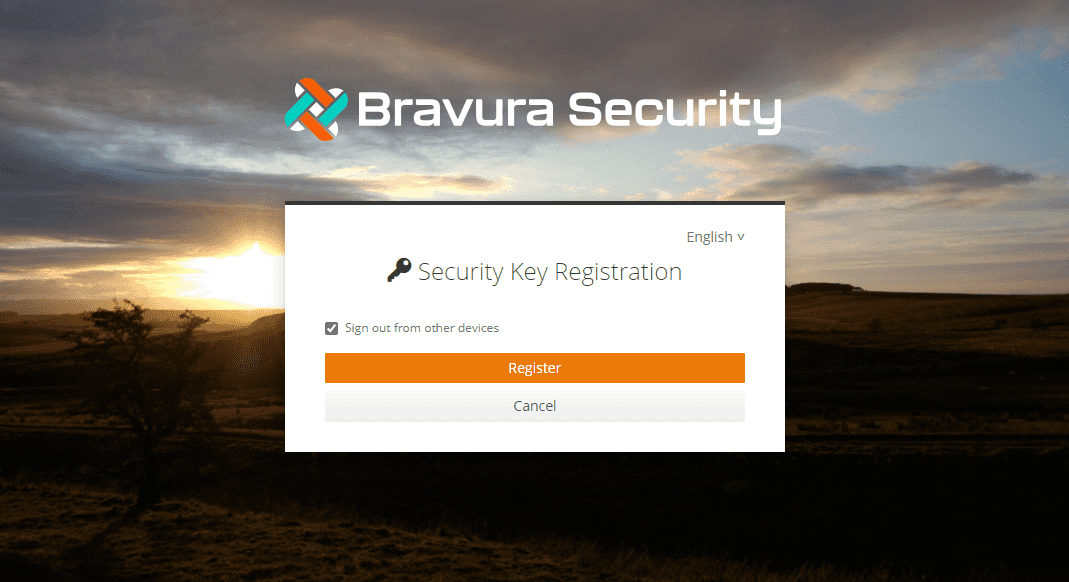
- Register
- Click OK
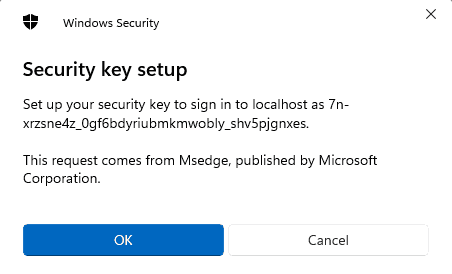
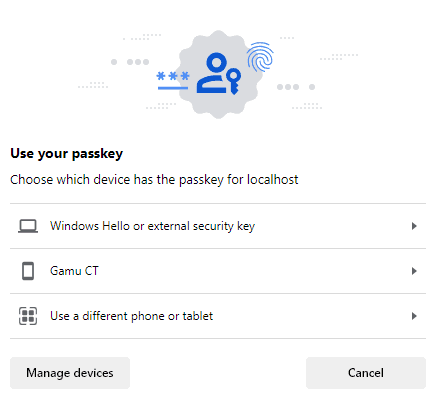
You will see the following:
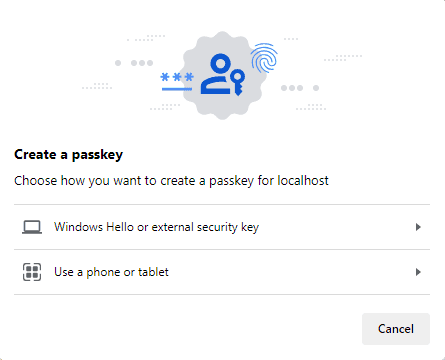
-
Follow the prompts to continue registering:
- Insert your security key into the USB port or click Cancel to create a passkey
- Create a passkey with Windows Hello:
- Select "Windows Hello or external security key"
- Follow the prompts
- Create a passkey using a phone or tablet:
- Select "Use a phone or tablet"
- Follow the prompts
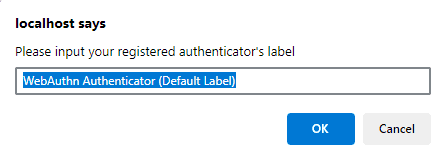
- Input your registered authenticator's label:
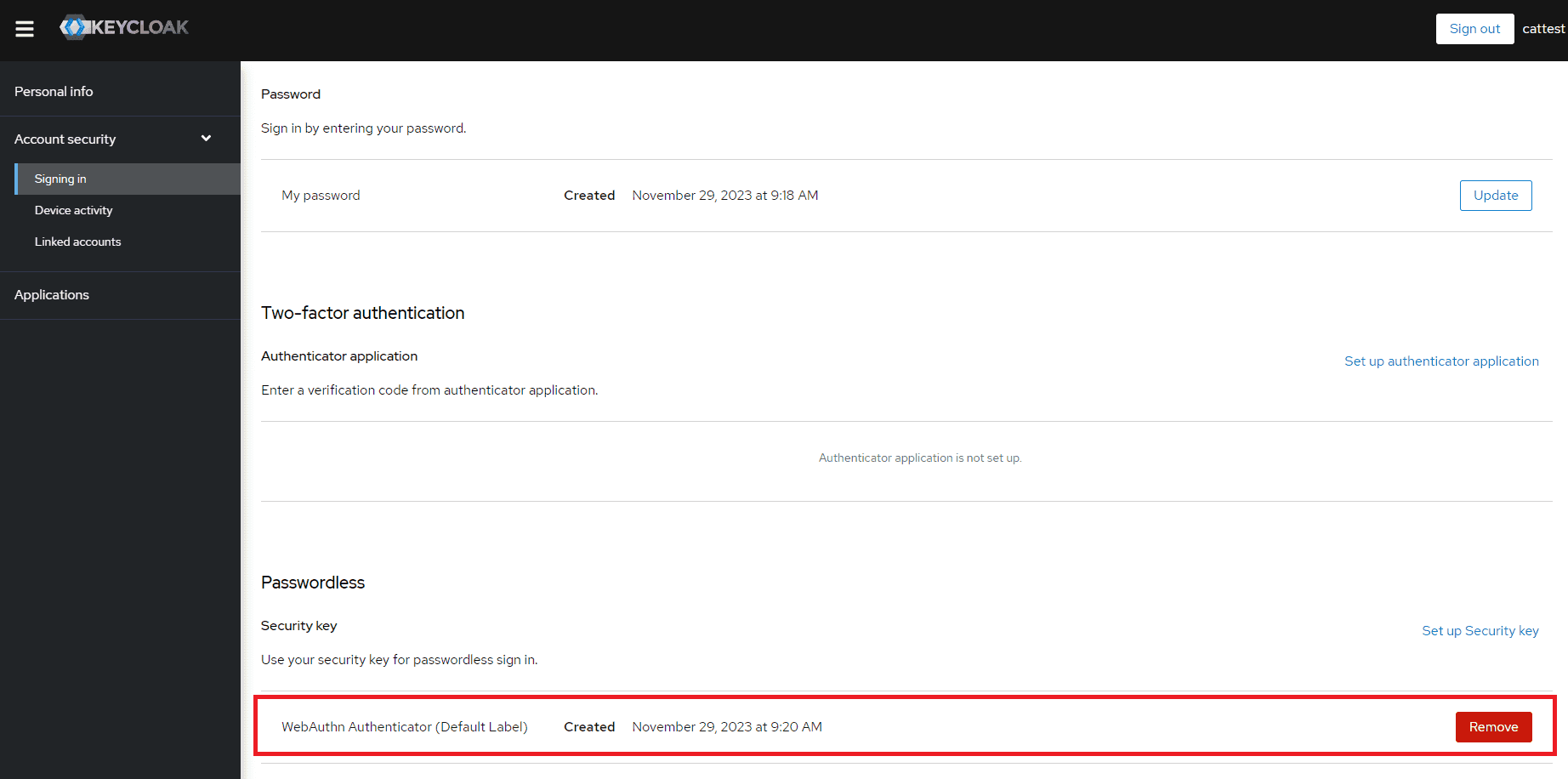
- Confirm authenticator is added
Sign in with passwordless authentication
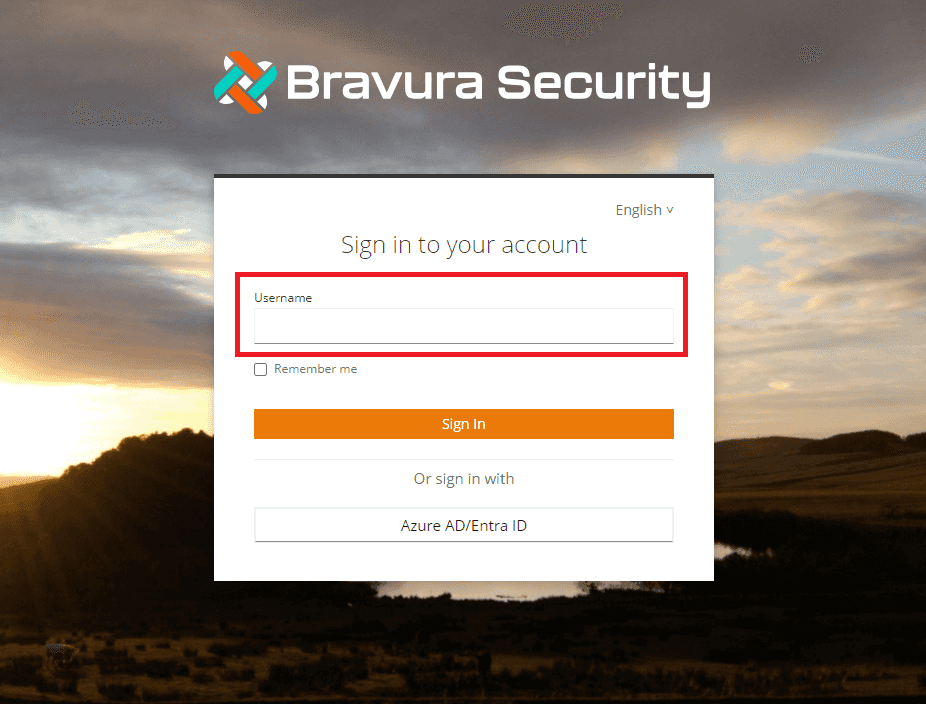
- Enter your username at sign in:
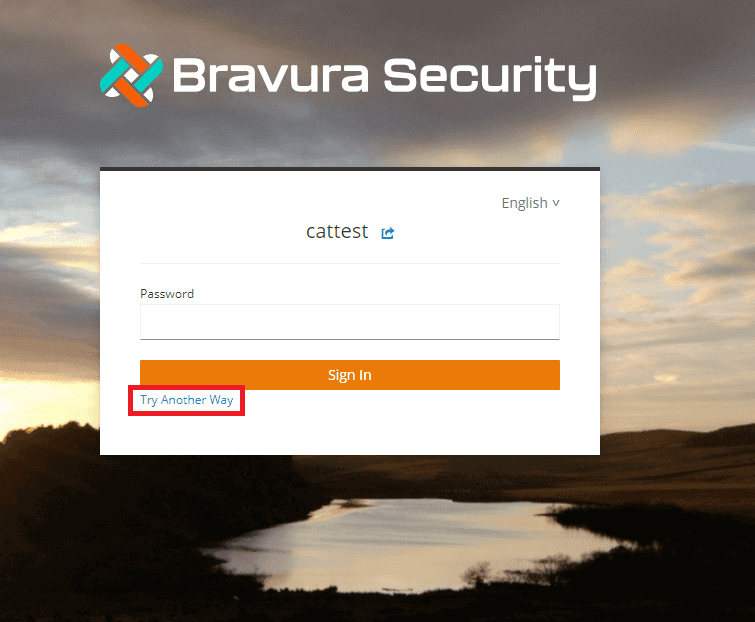
- Select "Try Another Way"
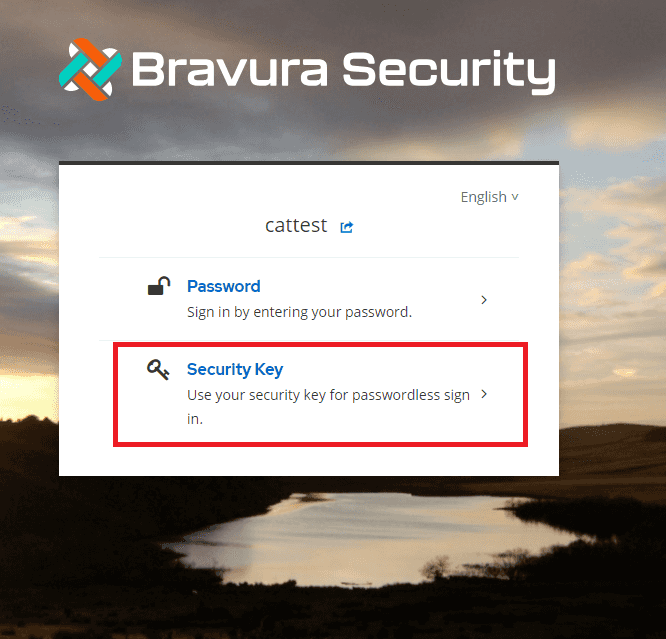
- Select "Security Key"
- Select "Sign in with Security Key"
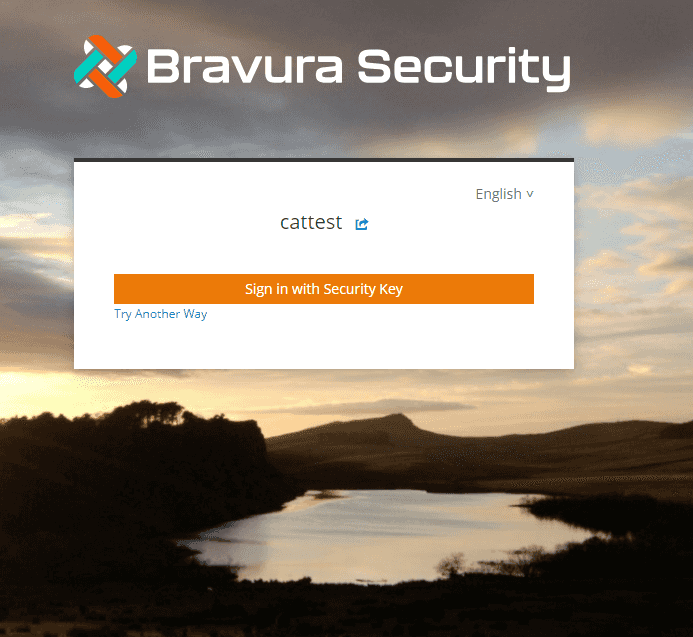
- Follow prompts